
Connect an LLM API Key on the Desktop App
Voice Creator Pro uses an LLM to power Clips. VCP Cloud includes it, and on the desktop app you connect your own provider with an API key, set a base URL for custom endpoints, and choose which model runs each feature.
Voice Creator Pro uses a large language model (LLM) to power Clips. VCP Cloud includes an LLM, so there is nothing to set up. On the desktop app, which runs on your own machine, you bring your own LLM by connecting a provider with an API key.
Only needed on desktop
This setup is for the desktop app. VCP Cloud has an LLM built in, so if you use Voice Creator Pro in your browser there is no key to add. You only need to connect your own LLM on the desktop app.
Where the LLM Is Used
The LLM powers Clips. It is what:
- Finds the moments worth clipping in a long video.
- Makes the auto-edit decisions, such as where to place zoom-ins and which filler words and silences to cut.
- Writes the titles and captions to post alongside each clip.
On VCP Cloud this runs on the built-in LLM. On the desktop app it runs on the provider you connect, so add a key before you generate clips there.
Supported Providers
You can connect any of the following in Settings, under AI Models:
- OpenAI
- Google Gemini
- OpenRouter
- DeepSeek
- Custom endpoint - any OpenAI-compatible API, set by its base URL
Add Your API Key
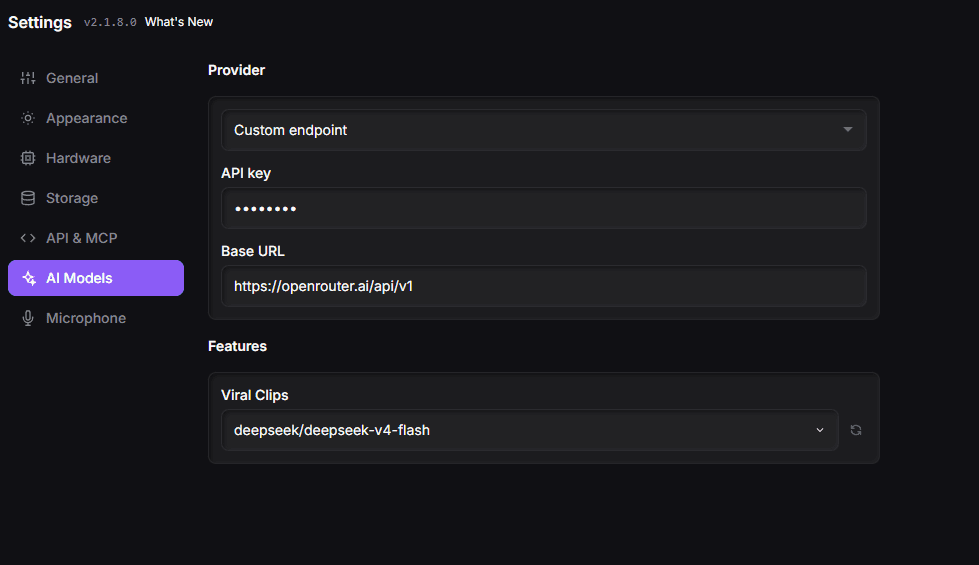
1. Open Settings and go to AI Models
In the desktop app, open Settings and select the AI Models tab.
2. Choose a Provider
Under Provider, pick your provider from the dropdown. Choose Custom endpoint if you want to point at any other OpenAI-compatible API.
3. Paste Your API Key
Enter your provider's API key in the field. You generate this key from your provider's dashboard, not from Voice Creator Pro.
4. Set the Base URL (Custom Endpoint)
If you chose Custom endpoint, set the Base URL to your provider's OpenAI-compatible endpoint, for example https://openrouter.ai/api/v1.
5. Choose a Model for Clips
Under Features, set the model for Viral Clips, for example deepseek/deepseek-v4-flash. Use the refresh button next to the model to reload the list of models available from your connected provider.
Once a provider and model are set, Clips will use them the next time you generate.
Notes
- Billing is with your provider. Your API usage is billed directly by the provider whose key you connect, based on their pricing. Voice Creator Pro does not add a charge on top.
- Keep your key private. Your API key is stored for the app to use. Treat it like a password and rotate it from your provider's dashboard if it is ever exposed.
- Prefer VCP Cloud instead? VCP Cloud runs the same features with a built-in LLM, so you can skip provider setup entirely.
Next Steps
- Viral Video Clips - Turn a long video into captioned vertical clips
- Video Dubbing - Dub your clips into another language