
Voice Cloning
Clone any voice from a recording, audio file, or YouTube video and use it for text-to-speech generation.
Voice Cloning
Voice Cloning lets you replicate any voice using a short audio sample. Provide a reference voice, type your text, and generate speech that sounds like the original speaker. No training or fine-tuning required.
The Clone tab is divided into three main panels:
- Reference Voice (left) - Load or record the voice you want to clone
- Generate Speech (center) - Enter text and configure generation settings
- Output (right) - Listen to and download the generated audio
Below the panels is a History section that stores all your past generations.
Add a Reference Voice
The first step in voice cloning is providing a reference audio sample. Voice Creator Pro supports three input methods:
Record from Microphone
Click the microphone icon to record your voice directly. This is useful for quick tests or when you want to clone your own voice in real-time.
Tips for best results:
- Use a quiet environment with minimal background noise
- Speak naturally for 3 to 10 seconds
- Avoid long recordings. Shorter, clean samples produce better clones, faster
For a deep dive on what makes a good reference clip, read How to Pick the Right Reference Audio for Voice Cloning. For more on why short clips work better than long ones, see How Many Minutes of Audio Do You Need for Voice Cloning?.
Upload an Audio File
Click the upload icon to select an audio file from your computer. Supported formats include WAV, MP3, and other common audio formats.
This is ideal when you already have a clean voice recording saved locally.
Import from YouTube
Click the YouTube icon to open the import dialog.
- Paste a YouTube URL into the field
- Click Fetch to download and extract the audio
- Preview the clip, then click Use this clip to load it as your reference voice
Transcript
Below the audio input is a Transcript field. When you load a reference voice, the built-in speech-to-text model automatically transcribes the audio for you. You can edit the transcript manually if needed.
Important: Before saving a voice or using it for cloning, make sure the transcript matches exactly what is being said in the audio. Even small mismatches between the audio and transcript will reduce clone quality. Always review and correct the transcription before generating.
Voice Library
Click the Library button to access your saved voices. The library shows each voice by name and duration, with a search bar to quickly find specific voices.
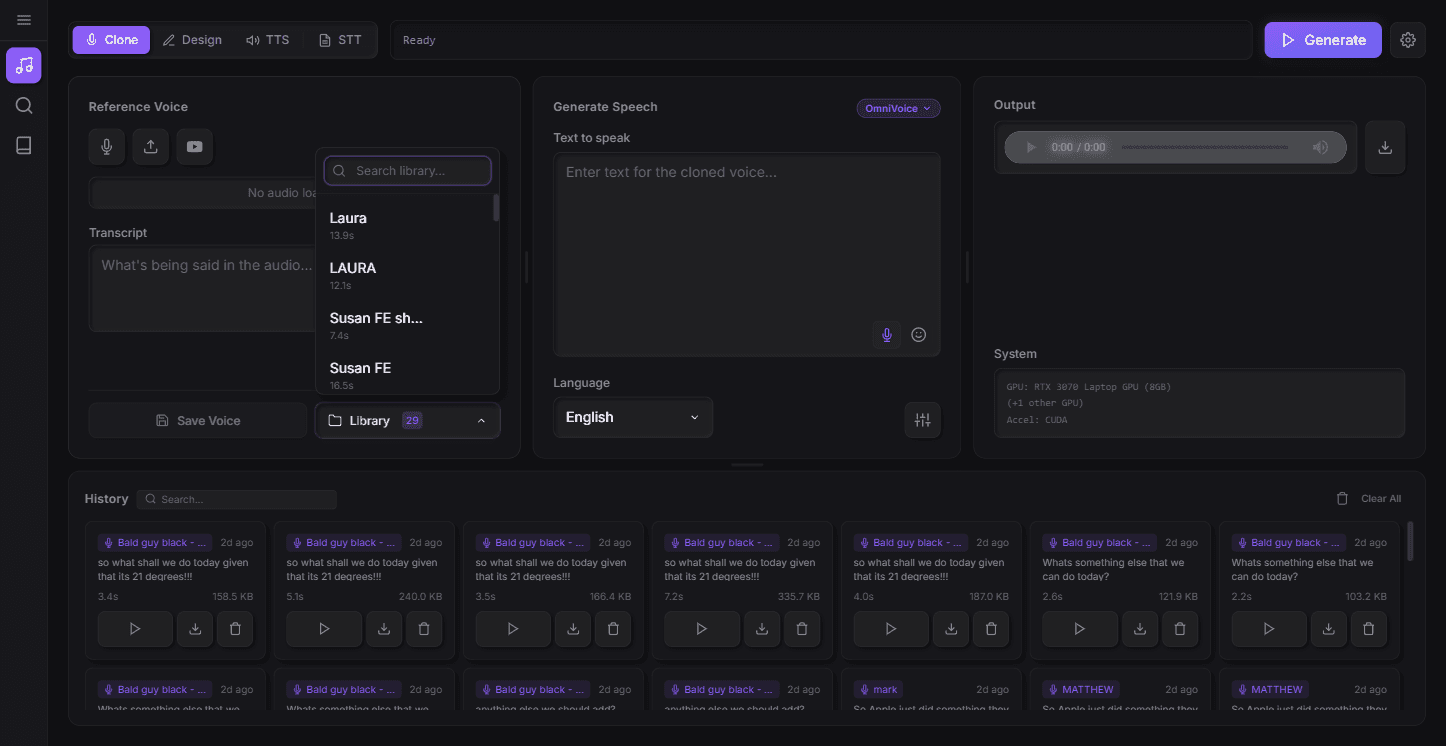
Select any saved voice to instantly load it as your reference. This saves time when you frequently use the same voices across multiple audiobooks.
Voices imported from Voice Search also appear here, giving you access to thousands of community voices alongside your own recordings.
Saving a Voice
After loading a reference voice you are happy with, click Save Voice to add it to your library. Give it a descriptive name so you can easily find it later.
Generating Speech
Text Input
In the Text to speak field, enter the text you want the cloned voice to say. The Lab is designed for short-form testing - try different sentences and styles to dial in the perfect voice for your use case. A paragraph or two works well here. For longer content like full scripts or articles, use Audiobooks instead.
Two additional tools are available in the text input area:
- Dictation (microphone icon) - Speak your text instead of typing it
- Expression tags (smiley icon) - Insert vocal expressions into your text
Expression Tags
Expression tags let you add natural vocal expressions like laughter, sighs, or surprise sounds at any point in your text. Click the smiley icon to see available tags.
Note: Expression tags are only supported by OmniVoice and Chatterbox models.
Example usage:
So I was walking down the street [laughter] and you won't believe what happened next [surprise-oh]Model Selection
Click the model name (shown as a purple badge) to switch between available TTS models:
| Model | Languages | Description |
|---|---|---|
| OmniVoice | 600+ | High quality voice cloning with natural prosody and expression tag support |
| DramaBox | Multilingual | The most capable model for expressive, character-driven, performance-style reads. Large model, but VCP offloads parts of it to run on as little as 12 GB of VRAM |
| Chatterbox Multilingual | 23 | Higher quality conversational speech |
| Chatterbox Turbo | English only | Faster, lower quality conversational speech |
| Qwen3 | 10 | High quality voice cloning with different voice characteristics |
| NeuTTS | English only | Smaller, lower quality model for weaker hardware |
Each model handles languages, accents, and speaking styles differently. Experiment with multiple models to find the best match for your use case.
Advanced Settings
Click the settings icon (sliders) next to the language selector to open advanced generation parameters. Each model has its own set of settings. Click Reset to restore defaults at any time.
OmniVoice Settings
| Setting | Default | Description |
|---|---|---|
| Speed | 1.00 | Speech speed multiplier. 1.0 is normal speed. |
| Duration | 0.00 | Target duration in seconds. 0 = automatic based on text length. |
| Steps | 32 | Number of diffusion steps. More steps produce higher quality but take longer. |
| Guidance Scale | 2.00 | How closely the output follows the text. Higher values are more accurate but may sound less natural. |
| Denoise | On | Reduces artifacts and background noise in the output. |
| Preprocess Prompt | On | Trims silence and normalizes reference audio before cloning. Disable if your reference is already clean. |
| Postprocess Output | On | Applies volume normalization. Disable for raw model output. |
Chatterbox Settings
| Setting | Default | Description |
|---|---|---|
| Exaggeration | 0.50 | Controls how expressive the voice sounds. Higher values produce more animated speech, lower values are more neutral. |
| CFG Weight | 0.50 | Controls speech pacing. Lower values (0.2-0.3) produce faster speech, 0.5 is the default pace, and higher values (0.7-0.8) produce slower, more deliberate speech. |
Qwen3 Settings
| Setting | Default | Description |
|---|---|---|
| Temperature | 0.90 | Controls variation between runs. Low values produce consistent output. High values (1.3+) add variety but may introduce artifacts. |
| Top P | 0.95 | Limits the cumulative probability of token choices. Lower values make output more focused and predictable. |
| Top K | 50 | Limits choices to the K most likely options at each step. Set to 1 for fully deterministic output. |
| Rep. Penalty | 1.05 | Penalizes repeated patterns. Values above 1.0 reduce repetition. |
NeuTTS Settings
| Setting | Default | Description |
|---|---|---|
| Temperature | 1.00 | Controls variation between runs. Low values produce consistent output. High values (1.3+) add variety but may introduce artifacts. |
| Top K | 50 | Limits choices to the K most likely options at each step. Set to 1 for fully deterministic output. |
| Min new tokens | 50 | Lower bound on generated speech length. Higher values prevent premature cut-off. |
| Max new tokens | 1800 | Upper bound on generated speech length. Lowering can speed up generation but may truncate longer text. |
Use Cases
Content Creation
Clone a consistent narrator voice for YouTube videos, podcasts, or audiobooks. Record a short sample of the desired voice, save it to your library, then generate all your scripts using that voice.
Multilingual Content
Take a single voice sample and generate speech in 600+ languages. Ideal for creating localized versions of video content, training materials, or product demos without needing native speakers.
Prototyping and Previews
Quickly prototype how dialogue will sound before hiring voice actors. Test different delivery styles, pacing, and tones by adjusting the advanced settings.
Accessibility
Generate natural-sounding audio versions of written content for visually impaired users. The expression tags add personality that makes listening more engaging than robotic TTS.
Social Media and Marketing
Clone a brand voice for consistent audio across social media posts, ads, and promotional videos. Save the voice to your library for reuse across campaigns.