
How to Add Pauses to AI Speech
Learn how to set exact, millisecond-level pauses for audiobooks and long-form audio in Voice Creator Pro, plus quick dramatic pauses with em dashes.
Good pacing is what separates a flat reading from a compelling one. A well-placed pause adds weight to a phrase, gives listeners time to absorb an idea, or builds anticipation before a key moment. This tutorial focuses on setting precise, repeatable pauses for audiobooks and long-form content, then covers a quick way to add dramatic beats when you are testing a line in the Lab.
Exact Pauses for Audiobooks and Long-Form Content
When you are producing a full audiobook, a long narration, or a podcast script, you usually want pauses that are precise and repeatable rather than approximate. Voice Creator Pro's Audiobooks tab lets you set pauses in exact milliseconds. There are two ways to do it: set a pause at a specific point in the text, or set the default gaps between paragraphs and segments across the whole audiobook.
Set a Pause at a Specific Point
Inside an audiobook you can add a pause of an exact length before any word or phrase:
- Open the Audiobooks tab and add your text by uploading a file (EPUB, PDF, DOCX, or TXT) or pasting it directly.
- Click into a segment to select it.
- Highlight the word or phrase before which you want the pause.
- A Selection panel appears on the right side.
- In that panel, set the Pause value to the length you want, in milliseconds.
The pause is inserted right before the highlighted text, so you get the exact beat you want every time you generate.
Set the Default Gaps Across a Whole Audiobook
For consistent pacing across a long document, control the silence inserted between every paragraph and every segment, so you do not have to place pauses one by one:
- Click the gear icon in the Audiobooks tab to open Audiobook Settings.
- Under the Output section, adjust:
- Paragraph gap (ms) - the silence between paragraphs (default: 300 ms)
- Segment gap (ms) - the silence between segments (default: 1000 ms)
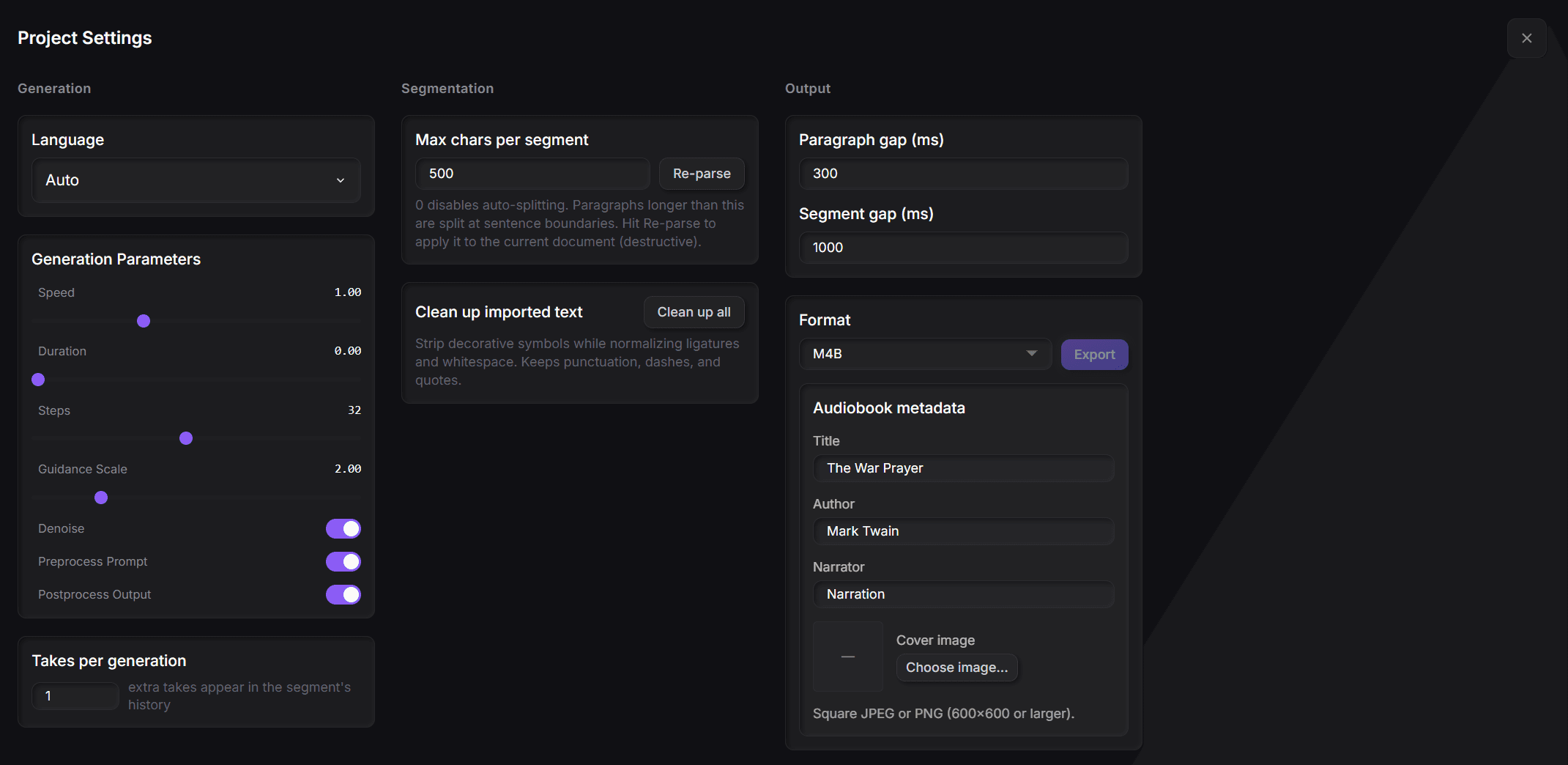
These gaps apply to the entire audiobook. Shorter gaps create a brisker pace, while longer ones give listeners more room to absorb each section. Fiction often reads well with slightly longer paragraph gaps (around 400 to 500 ms), while non-fiction can use shorter gaps for a faster pace.
You can combine both methods: use selection-level pauses for exact timing at key moments, and the paragraph and segment gaps to set the overall rhythm of the finished audiobook.
Quick Dramatic Pauses with Em Dashes
When you are generating just a line or two in the Lab, the fastest way to shape pacing is with punctuation. Insert two em dashes (——) where you want the voice to briefly hold before continuing, and the model treats it as a natural break:
The door opened —— and everything changed.
Commas, periods, and ellipses (...) nudge the pacing too, each producing a progressively longer pause. Em dashes are the most deliberate and the best tool for drawing attention to what follows.
For the full technique, with before-and-after audio examples and tips on where to place pauses, see the guide How to Add Pauses in Text to Speech.
Which Method Should You Use?
| Scenario | Recommended Method |
|---|---|
| Quick voice test in the Lab | Em dashes, commas, ellipses |
| Dramatic emphasis in a single line | Em dashes |
| Exact pause duration needed | Audiobooks selection-level pause |
| Consistent pacing across a long document | Audiobooks paragraph and segment gap settings |
| Podcast or audiobook production | Combine all three methods as needed |
Next Steps
- Generate an Audiobook for a complete production walkthrough
- Audiobook Settings for all audiobook configuration options
- Audiobooks overview for the full Audiobooks workflow
- How to Add Pauses in Text to Speech for the full em dash technique with audio examples
Generate Long-Form Audio
Walk through producing podcasts, article narrations, video voiceovers, and e-learning content in Voice Creator Pro using Audiobooks.
Use Multiple Voices in an Audiobook
A step-by-step tutorial for assigning multiple voices to different speakers in a Voice Creator Pro audiobook, with inline dialogue handling.