
Turn Long Videos into Short Clips
Drop in a long video and let AI find the moments worth clipping, then cut them into captioned vertical clips for TikTok, Reels, and Shorts, with auto-editing or full manual control.
Clips turns one long video into a set of short, vertical clips. Drop in a full recording such as a podcast, interview, talk, webinar, or stream, and Voice Creator Pro analyzes it, surfaces the strongest moments, and cuts each one into a clip sized for TikTok, Instagram Reels, and YouTube Shorts. Subtitles are generated for you and can be enabled on each clip, and you can let AI auto-edit the pacing or take manual control, then export.
One long recording usually holds several self-contained moments. Clips finds them and finishes them for you, so your time goes into choosing which clips to post rather than scrubbing a timeline.
Desktop needs an LLM key
Finding the moments and making the auto-edit decisions are powered by an LLM. VCP Cloud has this built in, so nothing to set up. On the desktop app you connect your own LLM with an API key. See Connect an LLM.
How It Works
You provide one long video. Voice Creator Pro takes it from a full timeline to finished vertical clips in a few steps.
1. Add Your Long Video
Load the full recording. Long, talking-heavy videos clip best, so podcasts, interviews, talks, webinars, courses, and streams are the strongest source material.
2. AI Finds the Moments
The video is analyzed and the moments most worth clipping are surfaced for you. A single upload can yield several clips, each built around one self-contained moment.
3. Enable Subtitles
Voice Creator Pro generates subtitles for your clips from the speech, and you can enable them on each clip so it reads in a sound-off feed, where most short-form video is watched. Subtitles work the same way as they do across the app, so you get the same styling controls covered in the Subtitle Generator docs.
4. Auto-Edit or Edit by Hand
Let AI auto-edit the clip, adding effects like zoom-ins timed for emphasis and cutting filler words such as "um" and "uh" along with silent gaps to tighten the pace. Or take manual control and adjust the cut, captions, and edits yourself.
5. Export Vertical Clips
Export each clip in a vertical 9:16 format, ready to post to TikTok, Instagram Reels, and YouTube Shorts.
What You Can Do
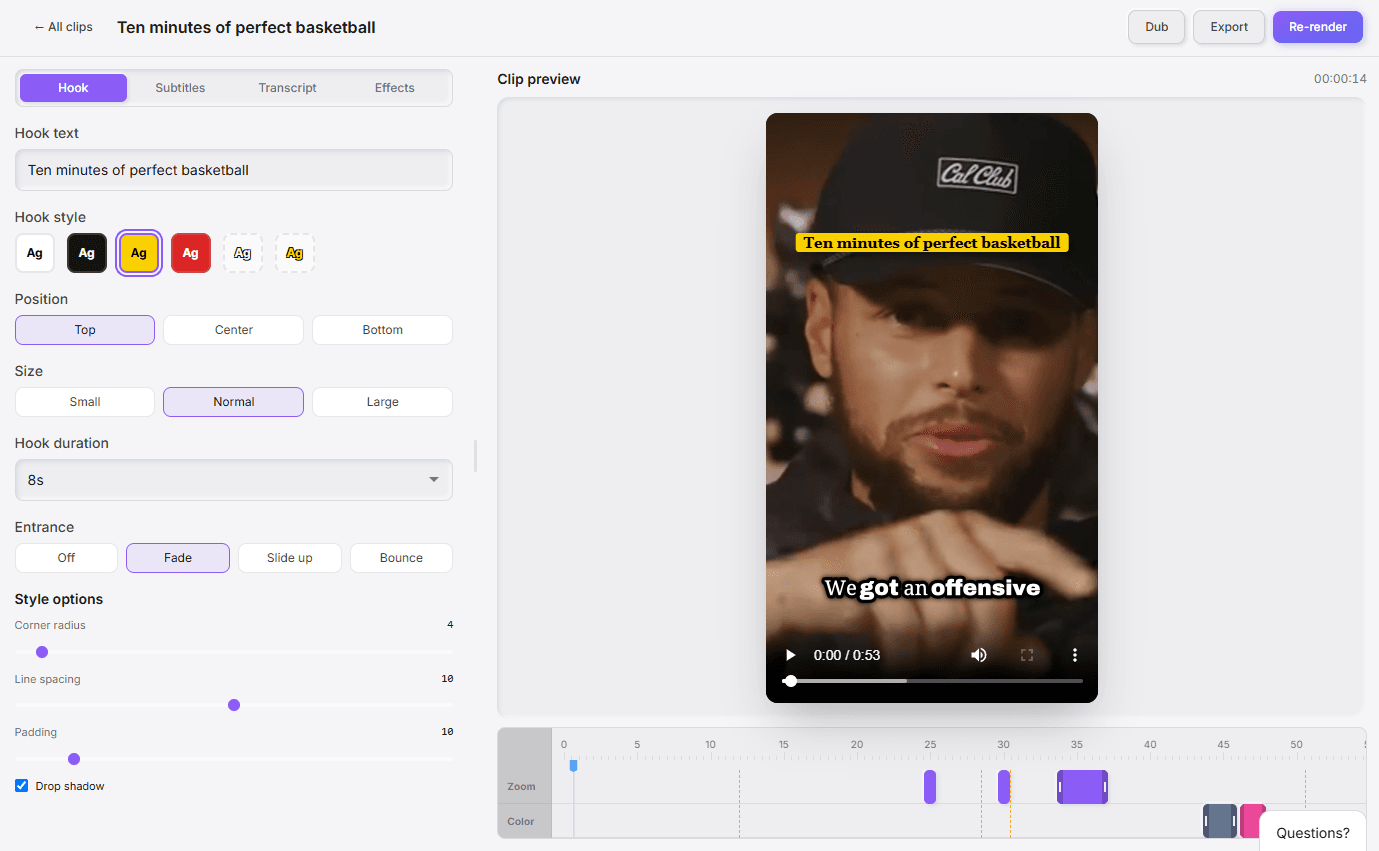
Open any clip to refine it in the editor. Across the top you switch between Hook, Subtitles, Transcript, and Effects, with a live preview beside them, and you can Dub, Export, or Re-render the clip at any time.
Hook
The hook is the attention-grabbing line shown over the clip, meant to stop the scroll in the first seconds. It is filled in with a suggested line that you can edit, and you control how it looks and behaves:
- Hook text - The words shown on screen.
- Style and placement - Pick from preset looks, then set the position (top, center, or bottom), the size, and an entrance animation (fade, slide up, or bounce).
- Duration - How long the hook stays on screen.
- Style options - Fine-tune the corner radius, line spacing, padding, and drop shadow.
Subtitles
Voice Creator Pro generates subtitles for each clip from the speech, and you can enable and style them so the clip reads in a sound-off feed, where most short-form video is watched. You get the same captioning controls used across the app, including word-by-word highlighting. See the Subtitle Generator docs for the full set of styling options.
Effects
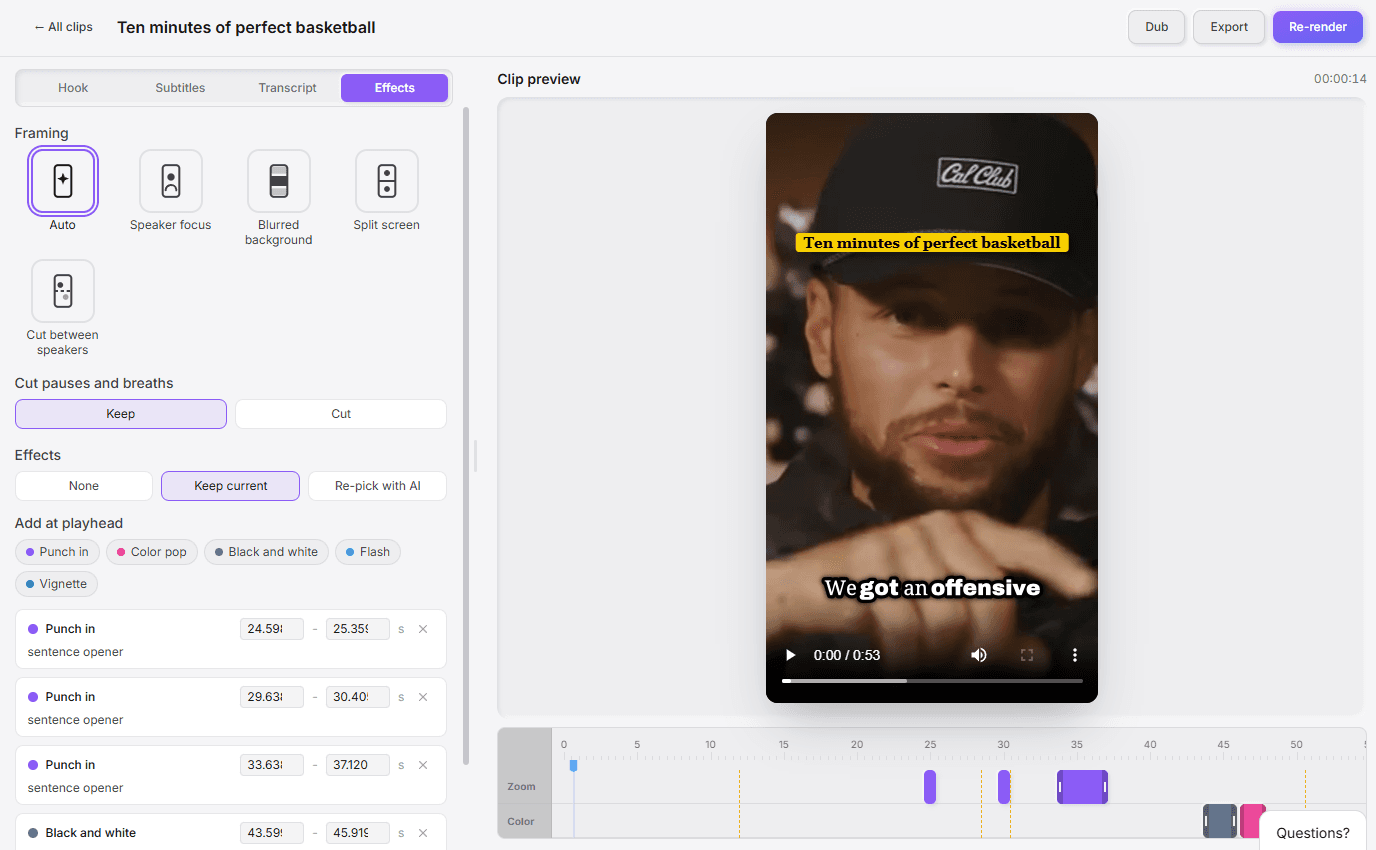
The Effects tab controls how each clip is framed and what visual effects play along its timeline:
- Framing - Choose how the shot is framed, such as Auto, Speaker focus, Blurred background, Split screen, or Cut between speakers.
- Cut pauses and breaths - Keep the natural pauses and breaths, or cut them to tighten the pace.
- Effects - Let AI re-pick effects for you, keep the current set, or clear them, and add your own at the playhead, including Punch in, Color pop, Black and white, Flash, and Vignette.
AI auto-edit places these for you, timed to key moments, and you can add or adjust any of them by hand on the timeline.
Dubbing
Dub a finished clip into another language to widen its reach. Captions open a clip to sound-off viewers, but they still assume the viewer reads the original language. Dubbing gives each moment a spoken version in a new language, up to 21 of them, so one recording becomes clips for several language markets. See the Video Dubbing docs for how dubbing works.
Use Cases
YouTube and Long-Form Creators
Repurpose long videos into Shorts and vertical clips without re-editing each one from scratch.
Podcasters
Cut episode highlights into captioned clips to promote each new episode on social.
Talks and Webinars
Pull the strongest moments from a talk, webinar, or course session into shareable clips.
Streamers
Turn long streams into highlight clips sized for short-form feeds.
Marketing Teams and Agencies
Get more out of every recording by turning it into a batch of captioned clips per channel or per client.
Next Steps
- Connect an LLM - Add an LLM API key so Clips works on the desktop app
- Subtitle Generator - Full details on captioning and subtitle styling
- Video Dubbing - Dub your clips into another language
- Transcribe Audio - Turn a recording into text with timestamps
Subtitle Generator
Generate accurate, perfectly timed subtitles for any video or audio, with word-level timestamps, translation into 21 languages, styled burned-in captions, and SRT or VTT export.
Connect an LLM
Voice Creator Pro uses an LLM to power Clips. VCP Cloud includes it, and on the desktop app you connect your own provider with an API key, set a base URL for custom endpoints, and choose which model runs each feature.