
Webinar Clip Maker
Turn Webinar Recordings into a Clip Series
Webinar replays rarely get watched. Voice Creator Pro finds the best answers and insights in your recording and turns them into captioned clips, so one webinar becomes a series of posts that reach buyers who never registered.
Why Voice Creator Pro
Why creators choose Voice Creator Pro
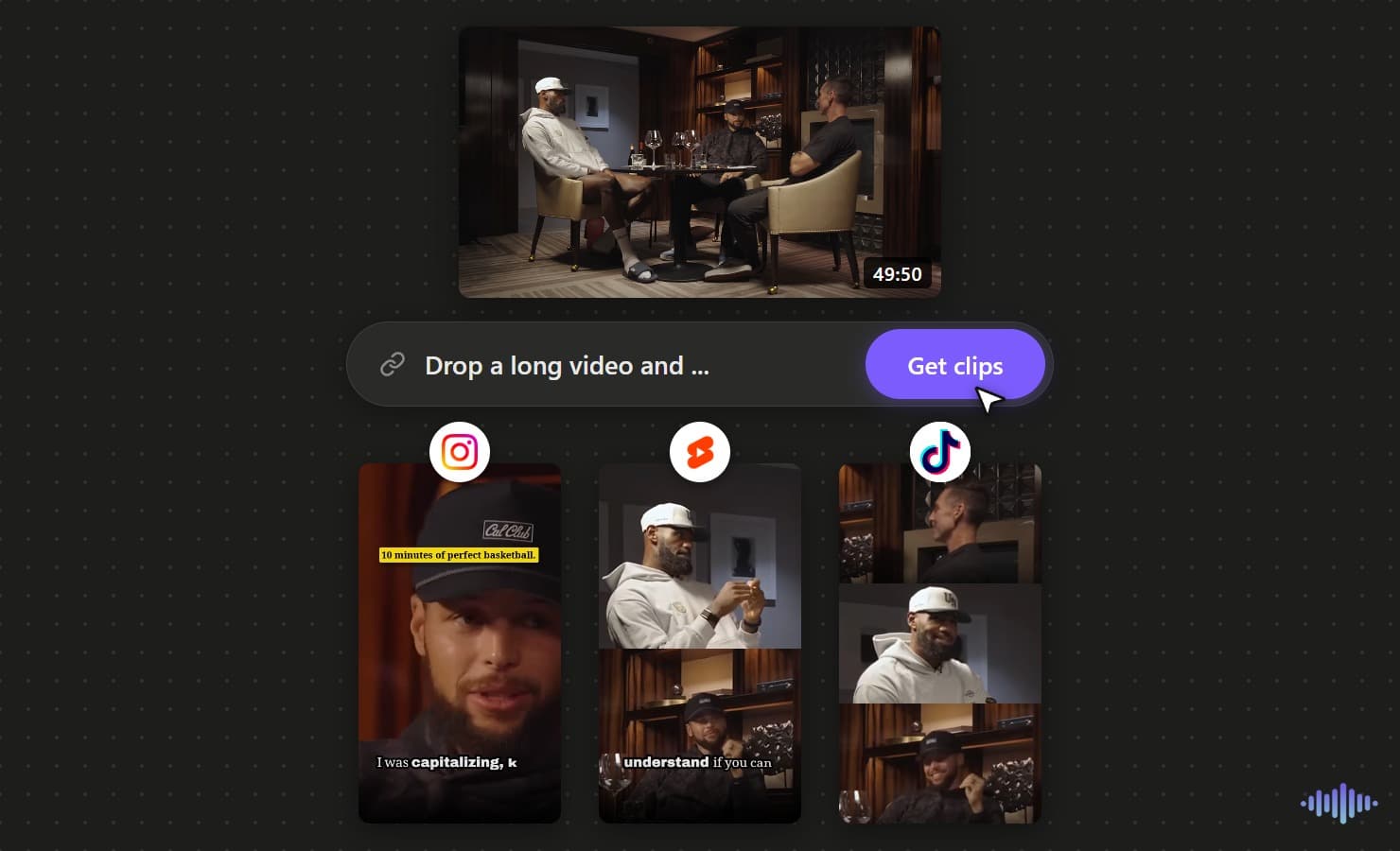
AI finds the moments you ask for
No scrubbing through a long timeline. The AI surfaces the strongest moments for you, several from a single video, and you can steer it with a prompt so it looks for what your audience cares about.
Captions and editing built in
Add subtitles, zoom-ins, and automatic filler and silence removal in one place, so each clip is ready to post, not just cut.
Reach beyond one language
Dub any clip into up to 21 languages, so a single moment reaches audiences far beyond its original language.
Free to start, or run it on your desktop
Begin free in your browser with no credit card, or buy the desktop app once for unlimited generations with no credits to count.
Create viral content the easy way
You do not have to guess what will land or scrub through hours of footage. Drop in a long video, tell the AI what to look for with a quick prompt, and it pulls the moments most likely to take off, so making content worth sharing takes minutes, not a weekend.
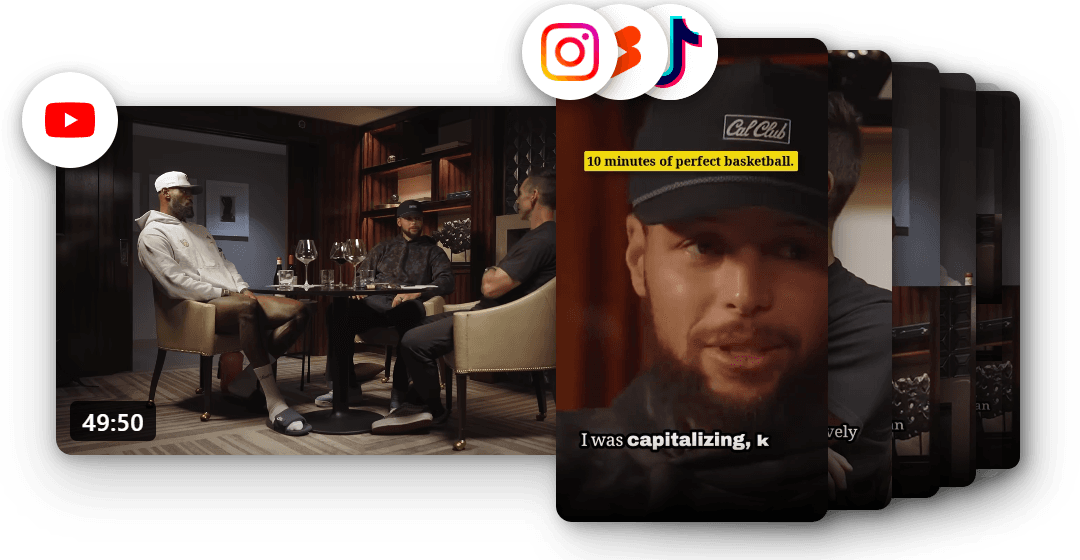
Turn one video into more views
Every clip is another way for people to find you. Ship clips faster and let them draw viewers back to the full video, so a single upload can keep drawing views long after you post it.
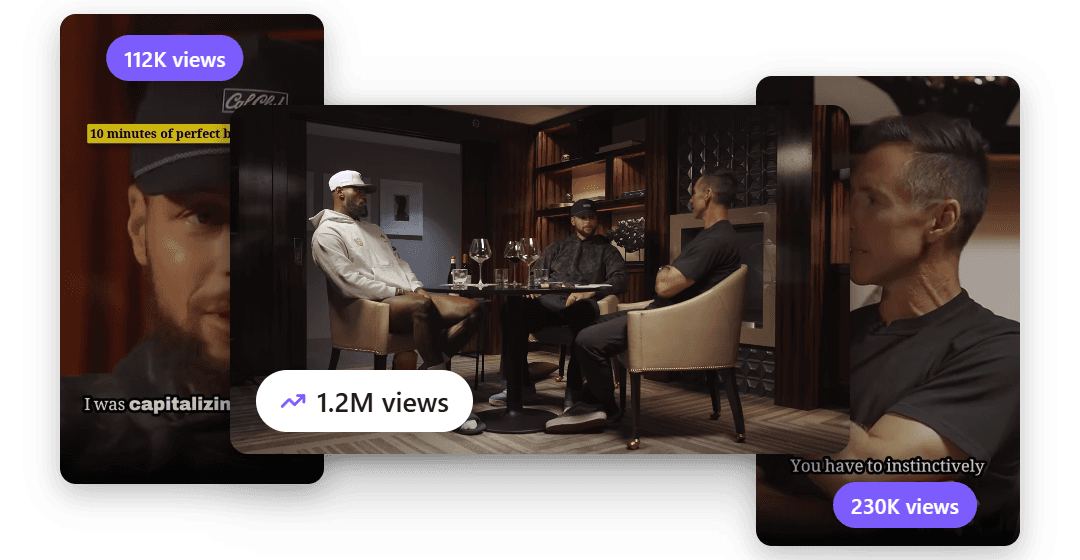
Reach an audience in 21 languages
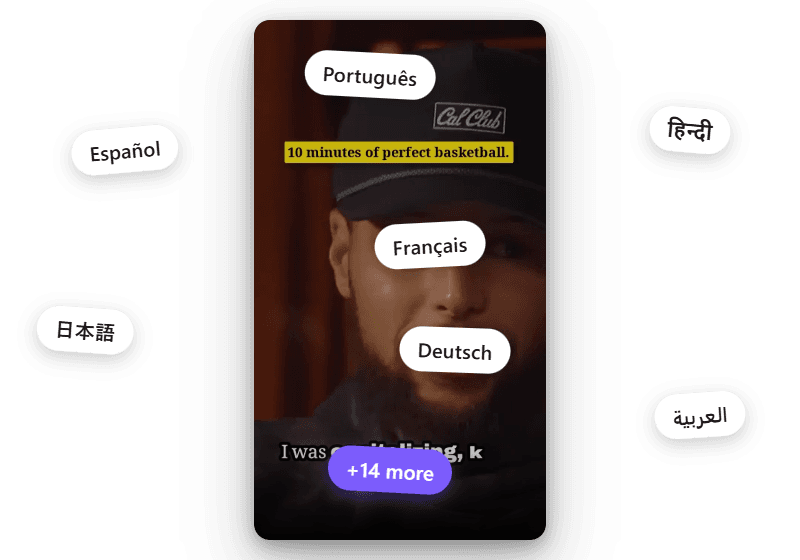
Your best moments should not stop at one language. Dub any clip into up to 21 languages and put the same short in front of viewers around the world.
Capabilities
Webinar Clip Features for B2B Teams
Guide the AI Prompt
Ask for the topic your campaign needs: objection handling, a product demo, a customer story or a strong opinion from a guest.
Layouts for Panel Webinars
Cut between speakers as each one talks, show two people in Split screen, or use the layouts for three or four speakers.
Captions for the Muted Feed
LinkedIn videos start on mute in the feed. Burned-in captions carry the point, with more than 49 caption styles to match your brand.
LinkedIn and Shorts Sizes
Export 1:1 or 4:5 for the LinkedIn feed and 9:16 for YouTube Shorts. Use 16:9 when a clip goes into an email or a landing page.
Cut the Webinar Pauses
Remove filler words, pauses and breaths. A slow answer from the live Q&A becomes a tight clip.
Dub for International Audiences
Dub a clip into 21 languages, so one webinar reaches prospects in other regions without a second session.
Replay vs Clip Series
What a Webinar Replay Gets vs a Clip Series
| Full webinar replay | Clip series from the same webinar | |
|---|---|---|
| Ask of the viewer | 45 to 90 minutes | Under a minute per clip |
| Opens with | Housekeeping and an agenda slide | The answer or the claim |
| Where it lives | One link in a follow-up email | Native in the LinkedIn and Shorts feeds |
| Reach after the event | Registrants only | Their networks and new prospects |
| Shelf life | Ends after the follow-up email | Several weeks of scheduled posts |
How It Works
From Webinar Recording to Clip Series
Upload the Recording
Upload the MP4 from Zoom or your webinar platform. A 90-minute session is fine on a paid plan or the desktop app: there is no length cap per video, only a 10 GB limit per file. Free videos can be up to 30 minutes.
Tell the AI What to Pull
Type a prompt in Guide the AI, such as "pull the moments about pricing objections". Set the minimum and maximum clip length and the number of clips.
Frame, Caption and Export
Pick a speaker layout, add captions and a hook line, then export in 1:1 or 4:5 for LinkedIn and 9:16 for Shorts.
Explore clip tools
AI Video Clips Generator
The full clips feature
YouTube to Shorts
Turn long uploads into Shorts
Podcast to Clips
Cut episodes into promo clips
Long Video to Shorts
Any long recording into shorts
Gaming Clips
Clips from gaming commentary
TikTok Clips
Vertical clips made for TikTok
Instagram Reels
Clips shaped for Instagram Reels
LinkedIn Clips
Professional clips for LinkedIn
Facebook Reels
Clips for Facebook Reels
Viral Clips
AI finds the viral moments
AI Shorts
AI shorts from any video
YouTube Clip Maker
Clip any YouTube video
Free AI Clip Generator
Make clips free in the browser
Desktop Clip Maker
One-time app, unlimited clips
Twitch Clips
Twitch VODs into vertical clips
Kick Clips
Kick streams into vertical clips
Conference Clips
Talks and keynotes into clips
Sermon Clips
Sermons into shareable clips
FAQ
Common Questions
Upload the webinar recording and add a Guide the AI prompt if you want a topic, such as pricing questions. Set clip length and how many clips you want. The AI picks the moments, then you choose a speaker layout, add captions and export.
Yes. Type what you want in the Guide the AI prompt, for example "pull the moments about pricing objections" or "find the customer stories". Leave it empty and the AI picks the strongest moments on its own.
Yes. Download the MP4 that Zoom saves and upload it. Paid plans and the desktop app have no length cap per video, and each file can be up to 10 GB, so a long session with Q&A fits. On the free tier, videos can be up to 30 minutes.
Pick Cut between speakers to switch to whoever is talking, Split screen to show two people at once, or a layout for three or four speakers. Speaker focus frames one presenter.
Use 1:1 or 4:5 for the LinkedIn feed, since both take up more of the screen than a wide 16:9 clip. Export 9:16 from the same clip for YouTube Shorts.
The free Cloud tier makes up to 10 watermarked clips per video. Paid Cloud starts at $5 a month with no watermark and uses monthly tokens, so longer videos use more. The desktop app is a one-time purchase with no tokens, and you connect your own LLM to pick clips.
Get Started
Turn Your Next Webinar into Weeks of Clips
Tell the AI which moments to pull, frame every panelist and export for LinkedIn and Shorts. Start in your browser, or get the desktop app for a one-time price.
Trusted by 6,000+ creators and businesses