
Kick Clip Maker
Turn Kick Streams into TikTok Clips
Kick streamers and their editors get captioned clips of the best things said on stream, from one Kick VOD. Export vertical 9:16 for TikTok, or 1:1, 4:5 and 16:9 for other feeds.
Why Voice Creator Pro
Why creators choose Voice Creator Pro
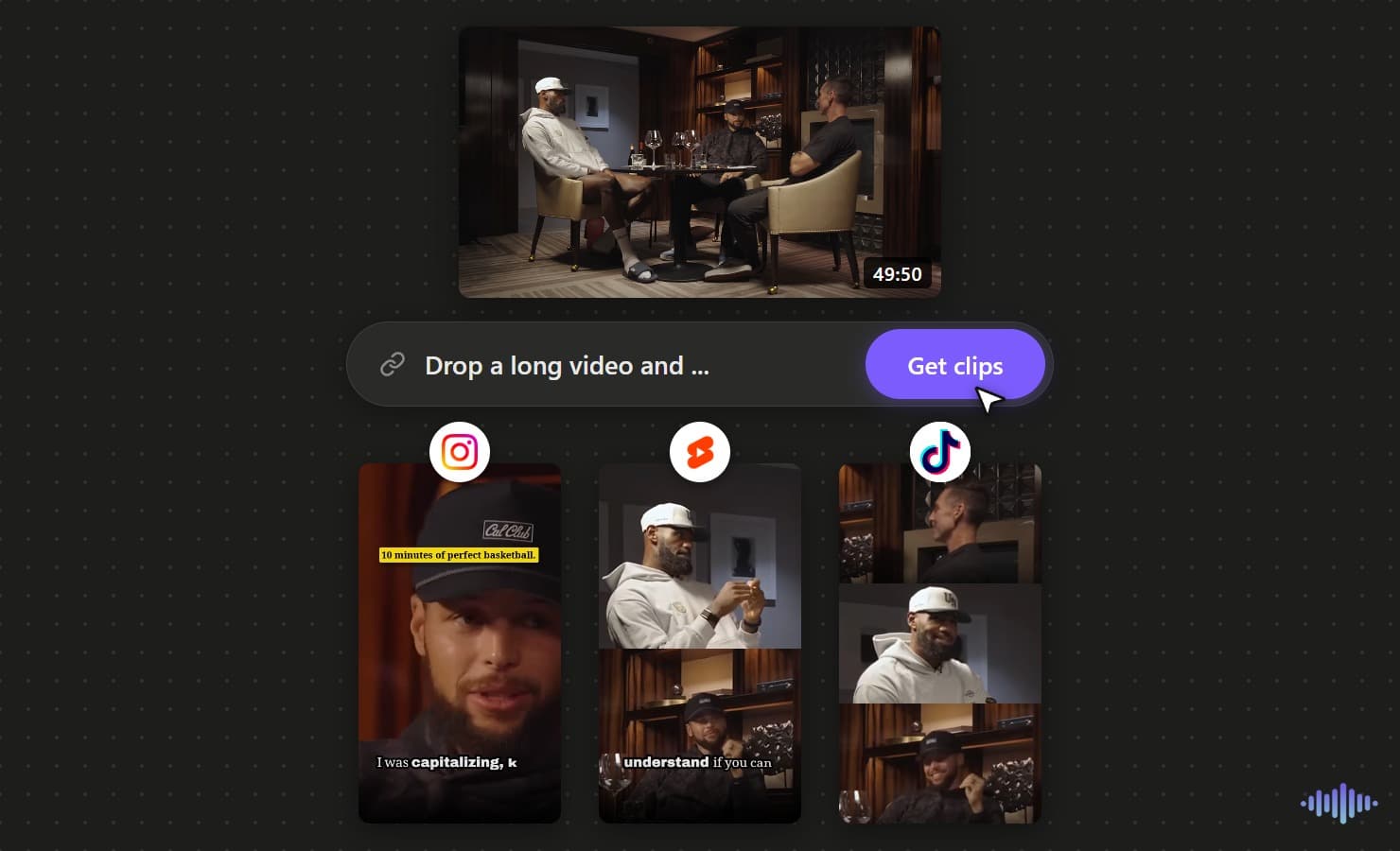
AI finds the moments you ask for
No scrubbing through a long timeline. The AI surfaces the strongest moments for you, several from a single video, and you can steer it with a prompt so it looks for what your audience cares about.
Captions and editing built in
Add subtitles, zoom-ins, and automatic filler and silence removal in one place, so each clip is ready to post, not just cut.
Reach beyond one language
Dub any clip into up to 21 languages, so a single moment reaches audiences far beyond its original language.
Free to start, or run it on your desktop
Begin free in your browser with no credit card, or buy the desktop app once for unlimited generations with no credits to count.
Create viral content the easy way
You do not have to guess what will land or scrub through hours of footage. Drop in a long video, tell the AI what to look for with a quick prompt, and it pulls the moments most likely to take off, so making content worth sharing takes minutes, not a weekend.
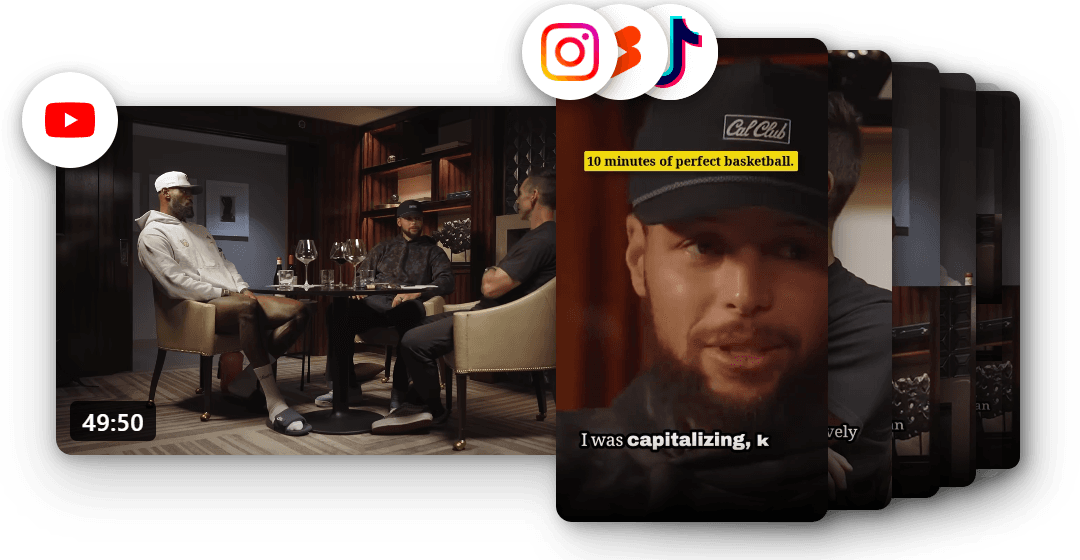
Turn one video into more views
Every clip is another way for people to find you. Ship clips faster and let them draw viewers back to the full video, so a single upload can keep drawing views long after you post it.
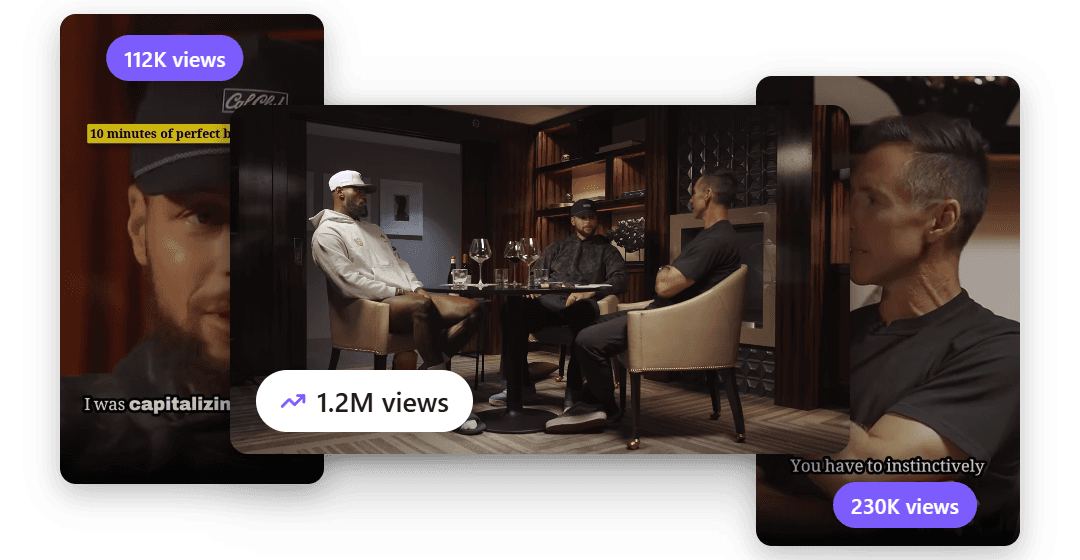
Reach an audience in 21 languages
Your best moments should not stop at one language. Dub any clip into up to 21 languages and put the same short in front of viewers around the world.
Capabilities
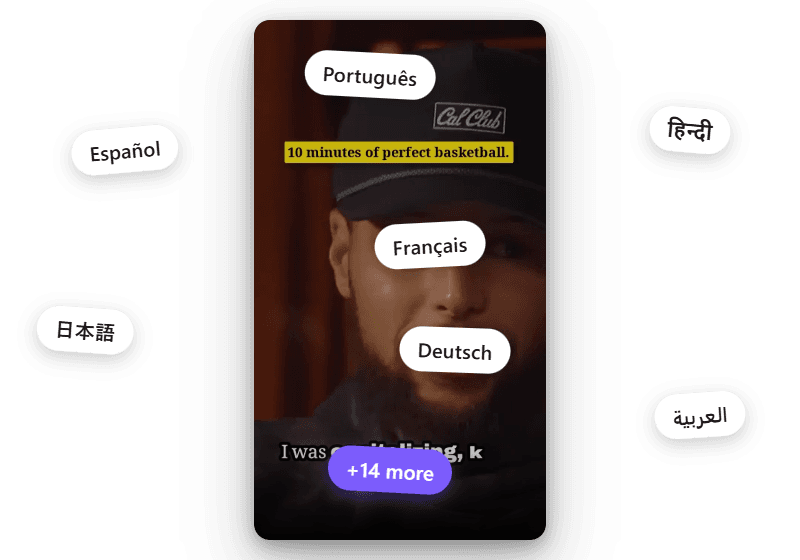
What You Get from One Kick Broadcast
A Batch from One Upload
Set the max number of clips per video. The AI reads the transcript of the full broadcast and returns that many candidates.
Prompt for Your Content
IRL, Just Chatting, gaming talk and co-streams each have different highlights. Describe yours in the Guide the AI prompt.
Layouts for Webcam Streams
Split screen puts the webcam and the screen in one vertical frame. Layouts for three or four speakers cover co-streams.
Hook Text on Screen
Add a short line of text at the top of the clip, so viewers know why to keep watching.
Captions and Effects
Pick from 49+ caption styles. Add Punch in, Flash or Color pop on the key line.
Timeline Editor with Undo
Trim a clip on a timeline with a waveform and filmstrip. Undo any change you do not like.
Settings That Fit Kick
How to Set Up a Kick Stream for Clipping
Save the VOD early
Download from Studio soon after the stream, while the moments are still fresh to post.
Pick a stream with talk
The AI picks from what is said. A chatty stream gives more clips than a quiet one.
Set a length range
Try 20 to 60 seconds for TikTok. Kick's own clips stop at 180 seconds.
Name the moments in the prompt
"Stories to chat and heated debates" gives better picks than no prompt.
Use Split screen for webcam streams
Your face stays on screen with the stream below it.
Keep Cut pauses on
Long silences between lines are removed from each clip.
How It Works
Kick VOD to TikTok Clips
Save the VOD from Studio
On the Kick website, open your Creator Dashboard, go to Studio, then VODs. Click Download on the broadcast and choose a quality.
Upload and Describe the Moments
Upload the file on the web or in the desktop app. Write a short prompt for the AI, for example "stories I tell chat, arguments with my co-streamers, funny rants".
Review the Batch and Export
Go through the clips the AI returns. Change the framing, the caption style or the hook text, then export the ones you want.
Explore clip tools
AI Video Clips Generator
The full clips feature
YouTube to Shorts
Turn long uploads into Shorts
Podcast to Clips
Cut episodes into promo clips
Long Video to Shorts
Any long recording into shorts
Gaming Clips
Clips from gaming commentary
TikTok Clips
Vertical clips made for TikTok
Instagram Reels
Clips shaped for Instagram Reels
LinkedIn Clips
Professional clips for LinkedIn
Facebook Reels
Clips for Facebook Reels
Viral Clips
AI finds the viral moments
AI Shorts
AI shorts from any video
YouTube Clip Maker
Clip any YouTube video
Free AI Clip Generator
Make clips free in the browser
Desktop Clip Maker
One-time app, unlimited clips
Twitch Clips
Twitch VODs into vertical clips
Webinar Clips
Turn webinars into social clips
Conference Clips
Talks and keynotes into clips
Sermon Clips
Sermons into shareable clips
FAQ
Common Questions
Voice Creator Pro makes TikTok clips from a downloaded Kick VOD. Save the broadcast from Creator Dashboard, Studio, VODs on the Kick website. Upload the file, and the AI returns 9:16 clips of what was said, with captions you can edit.
Log in to Kick on the web, open your Creator Dashboard, and go to Studio, then VODs. Click Download on the stream and choose a quality. The Kick mobile app does not have this option.
No. Voice Creator Pro needs the video file for Kick streams. Download the VOD first, then upload it. The only link import is for YouTube videos in the desktop app.
No. Voice Creator Pro Clips needs speech, because it picks moments from the transcript. A stream with no talking gives no clips, and a quiet stretch inside a stream will not come up. Save those moments with Kick's own clip button instead.
Kick's clip button saves any moment of 10 to 180 seconds that you pick, with or without talk. Voice Creator Pro reads what is said in the full VOD and returns several clips with captions and hook text. Export them in 9:16, 1:1, 4:5 or 16:9.
Yes. Voice Creator Pro Clips has layouts for three or four speakers, plus Cut between speakers, which switches to whoever is talking.
The VCP web app starts at $5 a month for clips without a watermark, using monthly tokens. The free tier makes up to 10 watermarked clips per video. The desktop app is a one-time purchase from $54.99 with unlimited generations, and you connect your own LLM.
Get Started
Clip Your Kick Streams
Download the VOD, upload it, and get captioned vertical clips of what was said on stream. Start in the browser, or buy the desktop app one time.
Trusted by 6,000+ creators and businesses