
7 Best Silence Remover Tools for Video (2026)
A silence remover finds the dead air in a recording and cuts it out, which turns a 20-minute take into a 14-minute video without an hour of trimming. The tools below all do that; they differ in what else they cut, whether they need your editor, and how they charge.
Quick picks
- Voice Creator Pro AI Cut: best overall, cuts silences, filler words and bad takes, and labels every cut
- Recut: best one-time price if silence is your only problem
- TimeBolt: best free desktop app for silence removal
- AutoCut: best for cutting silence inside Premiere Pro or DaVinci Resolve
- FireCut: best free plugin for DaVinci Resolve
- Descript: best if you want to replace your whole editor
- Gling: best for YouTubers who also want B-roll and titles
Best Silence Removers Compared
| Tool | Also cuts | Shorts and dubbing from the same edit | Free option | Paid from (Oct 2026) | Runs as |
|---|---|---|---|---|---|
| Voice Creator Pro | Filler words, stutters, bad takes | Shorts, and dubbing into 21 languages | 30 min a month, watermarked | $5/mo Cloud; $54.99 desktop once | Web app; desktop app, one-time purchase |
| Recut | Silence only | No | 3 exports | $129 once or $15/mo | Desktop app, one-time purchase or subscription |
| TimeBolt | Filler words, bad takes | No | Silence only, watermarked | $17/mo; $347 once | Desktop app, one-time purchase or subscription |
| AutoCut | Bad takes on the AI plan | Shorts, on the AI plan | 14-day trial | $79/yr | Premiere and Resolve plugin |
| FireCut | Filler words on Pro | Shorts, on Pro | Resolve plugin, silence only | $10/mo billed yearly | Premiere and Resolve plugin |
| Descript | Filler words, retakes | Shorts, and dubbing on AI credits | 1 hour a month, 720p, watermarked | $16/mo billed yearly | Web app; desktop app, needs subscription |
| Gling | Filler words, bad takes | Shorts | 1 hour a month, watermarked | $10/mo billed yearly | Web app; desktop app, needs subscription |
How we compared them: we read each tool's own pricing and feature pages in October 2026 and compared what it cuts, its free option, its price and where it runs. We didn't run the same recording through every tool, so there are no speed or accuracy scores here.
Silence, Filler Words or Bad Takes: What Do You Need to Remove?
Pick the tool by the mistakes in your footage, because a pure silence remover leaves the other two in.
- Silence only: pauses while you think, look at notes or reset. Every tool on this list handles it, and Recut does nothing else.
- Filler words: um, uh and stutters. These sit inside your sentences, so a silence detector can't find them. You need speech recognition.
- Bad takes: a line you said three times, or a section you restarted. Removing these means choosing which take to keep, and only some tools say how they choose.
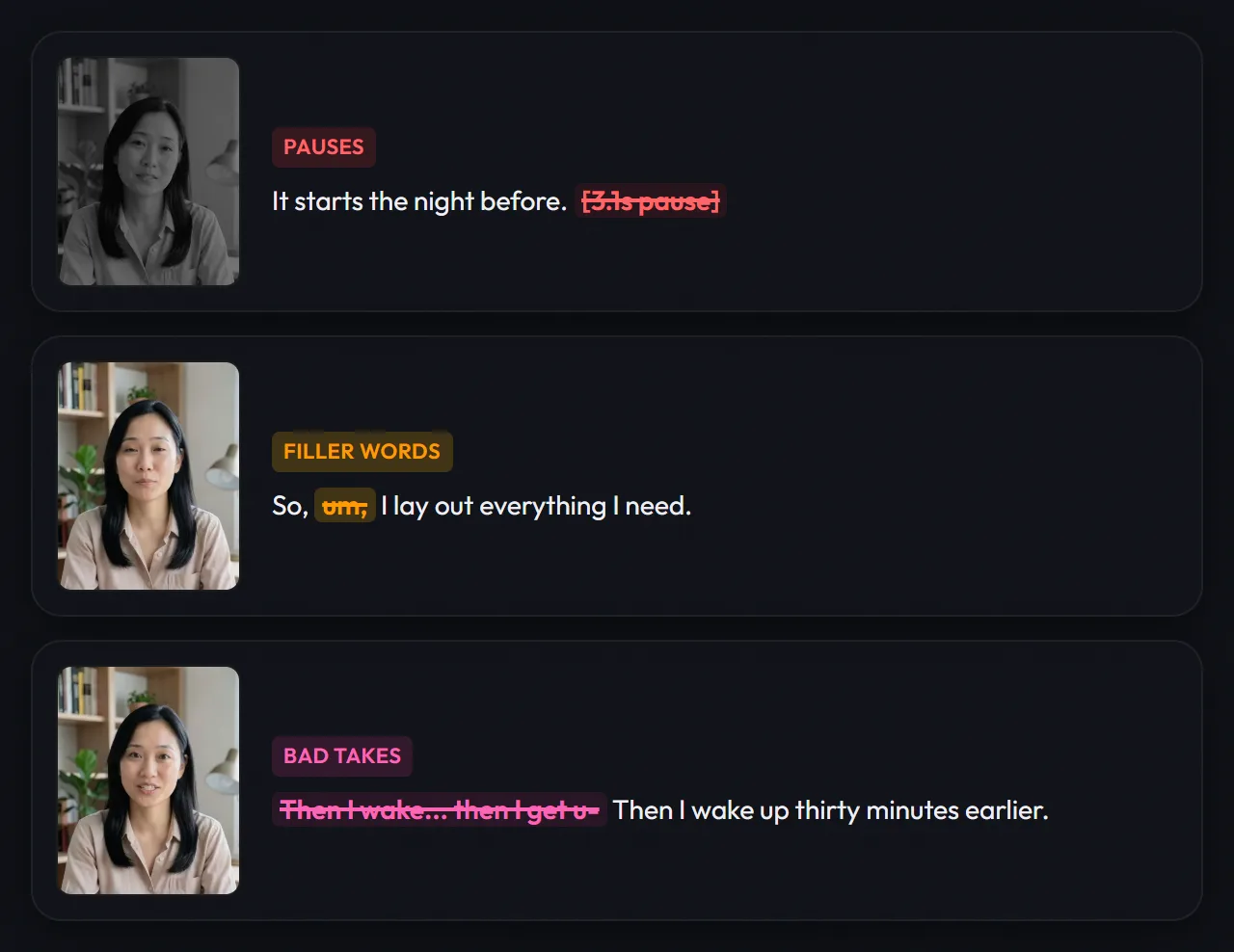
If you read from a script and repeat lines often, silences are the smallest part of your edit. A tool that only removes silence will leave every repeated line in for you to cut by hand.
Voice Creator Pro AI Cut: Best Overall Silence Remover
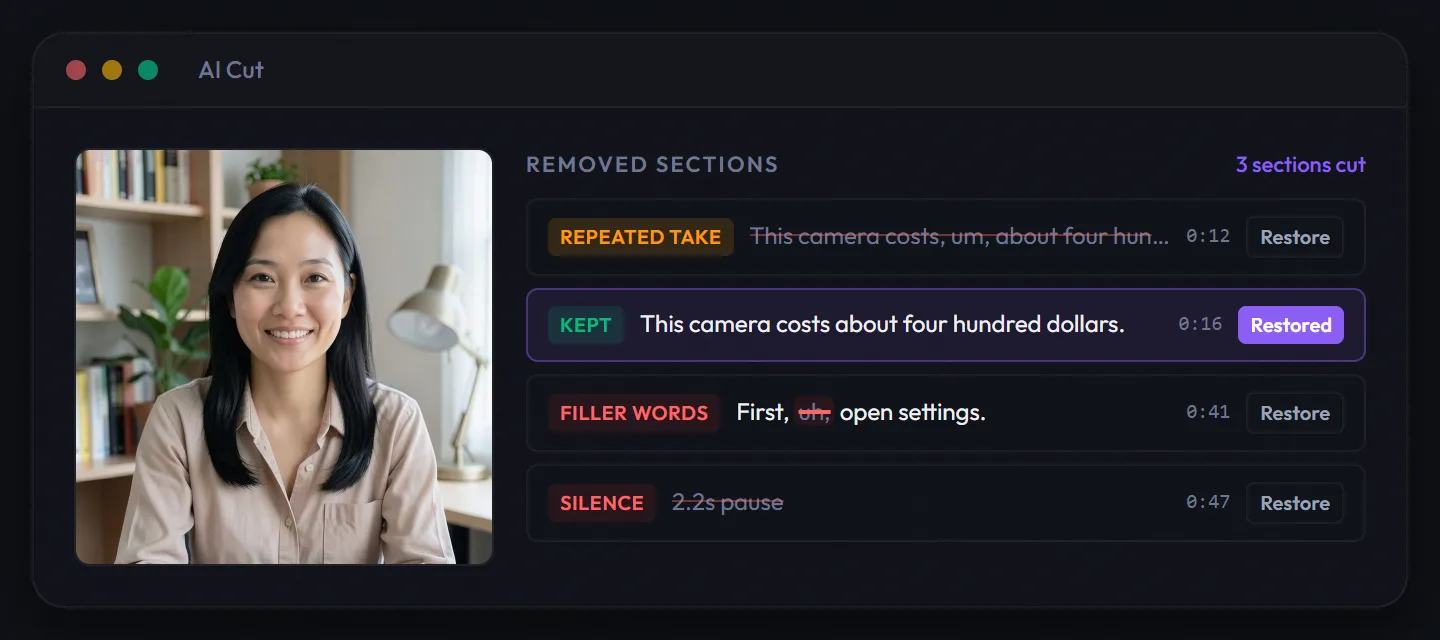
AI Cut in Voice Creator Pro removes long silences, filler words, stutters, false starts and bad takes from a talking-head recording, and labels every cut so you can review it fast.
- Best for: creators who want dead air and mistakes gone in one pass
- Price: free Cloud tier with 30 minutes of footage a month, watermarked; paid Cloud from $5/mo; desktop app $54.99 once, with your own AI model key (checked Oct 2026)
- Standout: each cut is labelled, such as "Silence", "Repeated take" or "False start", and you can restore any of them
- Limitation: no B-roll
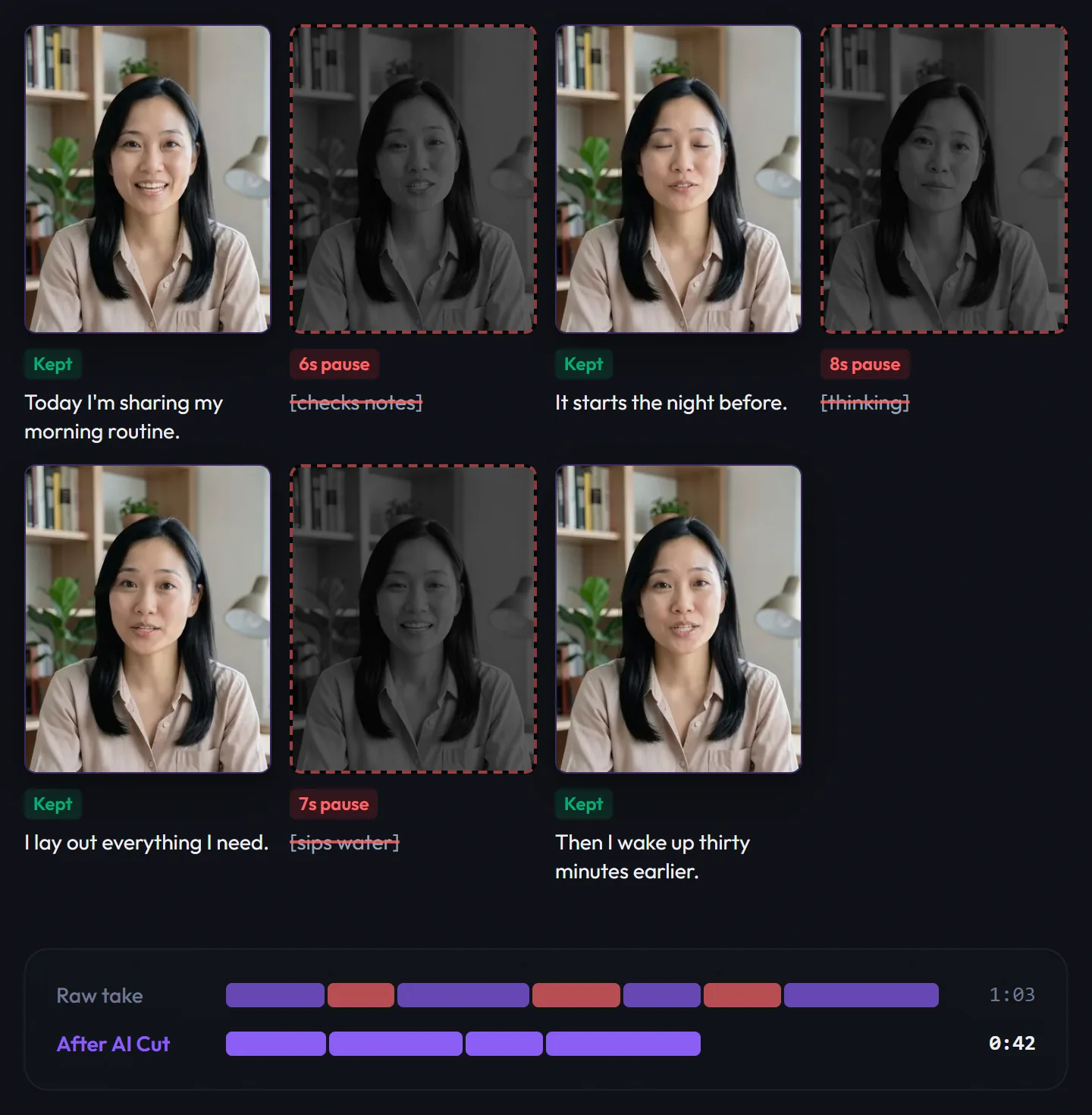
Silence is one cut type among several. AI Cut removes the dead air between sentences and while you look at your notes, then goes after the filler words and repeated takes a silence detector would miss. When you repeat a line, it keeps the last good take.
Recorded from a script? Paste it in. AI Cut finds the take of each line that best matches your script, and strict mode also cuts anything you said that isn't in it. Script lines it can't find in the video are flagged.
Pros
- Review is fast: every cut is labelled, so you can skim the list and restore only what you want back
- Finishing in the same place: burned-in subtitles, titles, word highlights, and original, 9:16, 1:1, 4:5 or 16:9 framing with the crop following your face
- Exports for your editor: the finished video, Premiere Pro XML, DaVinci Resolve XML and SRT
- One edit, more videos: turn the cut into Shorts in one click, or dub it into 21 languages
Cons
- No Final Cut Pro XML
- On desktop, you connect your own key from Gemini, OpenAI, OpenRouter, DeepSeek or another OpenAI-compatible service, and that provider bills you for its use
On the desktop app, your video is processed on your own computer and only the transcript goes to the AI model you connect, with no monthly footage cap. The Cloud version runs in your browser with nothing to install.
One recording, more videos
After the cut, the same edit becomes more videos, all from one account:
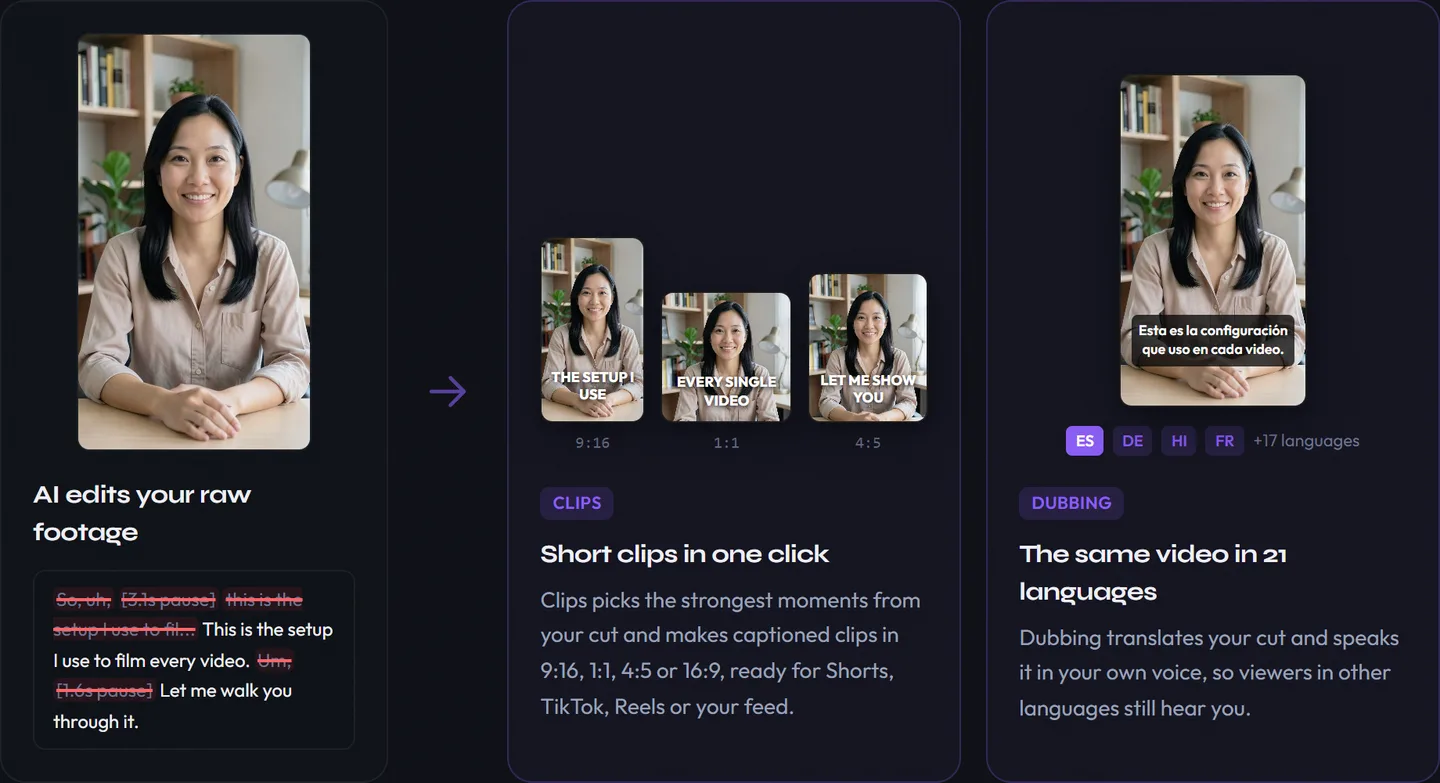
- The full video: cut, captioned and framed, ready for YouTube
- Shorts: Clips picks the strongest moments and turns them into 9:16 clips with subtitles in one click
- Dubbed versions: dub the video into 21 languages. Each speaker's voice is cloned from the video automatically, so you still sound like you, and the background music stays under the new dialogue
Clips and dubbing are both on the free Cloud tier, with watermarked exports.
Try AI Cut free in your browser on a recording with a few long pauses in it.
Upload a raw recording and watch the silences come out
Remove silences freeRecut: Best One-Time Price for Silence Only
Recut is a Mac and Windows app that does one job: it finds the silences in a recording and cuts them, then hands the result to your editor.
- Best for: podcasters and screen recorders whose only problem is dead air
- Price: $129 one-time or $15/mo; free trial with all features and 3 exports, no card (checked Oct 2026)
- Standout: exports to Premiere Pro, DaVinci Resolve, Final Cut Pro, ScreenFlow and CapCut, plus MP4, WAV and M4A
- Limitation: no filler-word or bad-take detection
Pros
- One payment, no hours or credits to track
- Multi-track support for several cameras and mics
Cons
- Repeated lines, ums and false starts all stay in
- No captions, framing or transcript editing
TimeBolt: Best Free Desktop Silence Remover
TimeBolt is a Mac and Windows app whose free tier detects and removes silence, with paid plans that add XML export and filler-word removal.
- Best for: trying automatic silence removal on long recordings before paying anything
- Price: free (silence only, watermarked, no XML, no saved projects); Pro $17/mo, $97/yr or $347 lifetime (checked Oct 2026)
- Standout: "local-first editing" with no cloud upload, per TimeBolt's site
- Limitation: filler-word removal (UMCHECK) costs $0.03 per minute of video on top of the plan
Pros
- One license works on up to 2 machines
- XML and plugin export for Premiere Pro, Final Cut Pro and DaVinci Resolve on Pro
Cons
- Free exports are watermarked and can't go to your editor as XML
- TimeBolt says it removes bad takes but doesn't explain which take it keeps
Our TimeBolt alternatives comparison goes deeper on its plans.
AutoCut: Best for Cutting Silence Inside Premiere Pro or Resolve
AutoCut is a plugin for Premiere Pro and DaVinci Resolve on macOS and Windows, so the silence cuts land on the timeline you're already working in.
- Best for: editors who don't want an export and re-import step
- Price: Basic $79/yr (silence removal only); AI plan $178.80/yr with all 10 AI features; Enterprise $238.80/yr per license; 14-day trial with no card (checked Oct 2026)
- Standout: AutoCut Repeat removes bad takes on the AI plan, alongside captions, zooms and B-roll
- Limitation: needs Premiere Pro or Resolve to work at all
Pros
- Basic is one of the cheapest paid options here
- No round trip: edits happen in your existing project
Cons
- Prices are yearly; the AI plan is needed for anything beyond silence
- No support for Final Cut, CapCut or browser editors
FireCut: Best Free Plugin for DaVinci Resolve
FireCut is a plugin for Premiere Pro and DaVinci Resolve, and its free Resolve plugin cuts silence with basic and advanced settings.
- Best for: Resolve users who want silence cutting without paying
- Price: Resolve plugin free for silence; Resolve Pro $20.99/mo or $16/mo yearly. Premiere Starter $19/mo or $10/mo yearly; Premiere Pro $34/mo or $20/mo yearly (checked Oct 2026)
- Standout: a free tier that works inside Resolve, including DaVinci Resolve Free
- Limitation: filler-word removal needs a Pro plan and counts against monthly transcription hours
Pros
- 7-day trial on paid individual plans, cancel any time
- J-cuts and captions on paid plans
Cons
- Separate price ladders for Premiere and Resolve
- Transcription-based features are capped by hours (25 a month on Premiere Pro)
Descript: Best If You Want to Replace Your Editor
Descript is a full video and podcast editor where you edit by editing the transcript, and its Shorten word gaps tool trims every pause in the transcript to a length you set.
- Best for: creators who want one app from rough cut to export
- Price: free (1 media hour a month, 720p, watermarked); Hobbyist $24/mo or $16/mo yearly; Creator $35/mo or $24/mo yearly; Business $65/mo or $50/mo yearly (checked Oct 2026)
- Standout: you choose a target length for pauses instead of deleting them outright, then review each one
- Limitation: Shorten word gaps uses AI credits, a separate meter on top of media hours
Pros
- Remove Filler Words and Remove Retakes on every paid plan
- Runs on the web, Mac and Windows
Cons
- Users on Descript's feedback board report that anything without a transcribed word counts as a gap, so laughs and background sounds can get cut
- More tool than you need if you only want the dead air gone before editing in Premiere or Resolve
Gling: Best for YouTubers Who Want B-Roll and Titles Too
Gling removes silences, filler words and bad takes from YouTube recordings, then helps finish the video with B-roll, framing, captions and title ideas.
- Best for: YouTubers who want the cut and the finishing touches from one tool
- Price: free (1 hour a month, watermarked); Plus $20/mo or $10/mo yearly for 10 hours; Pro $40/mo or $20/mo yearly for 30 hours (checked Oct 2026)
- Standout: AI B-roll, noise removal, auto zoom and YouTube title and chapter generators
- Limitation: unused hours don't roll over, even on yearly plans
Pros
- XML export to Premiere Pro, Final Cut Pro and DaVinci Resolve on paid plans
- 24 speech languages, per Gling's pricing FAQ
Cons
- The free plan can't export to your editor
- An hours allowance that expires each month
See our Gling alternatives comparison for how Gling handles bad takes.
Can Your Editor Already Remove Silence?
Premiere Pro, DaVinci Resolve and CapCut each have a built-in silence tool, so check yours before buying anything.
- Premiere Pro: Text-Based Editing marks pauses and filler words like "uh" and "um" in the transcript, and lets you delete them in bulk. Clips transcribed before the feature arrived need transcribing again.
- DaVinci Resolve: version 20.2 added Ripple Delete Silence under Clip, then Audio Operations, with a volume threshold and a preview. The Fairlight Remove Silence command is Studio only, and it isn't clear whether the free version includes Ripple Delete Silence, so check yours.
- CapCut: has a Remove Silence tool. Several 2026 guides say it needs CapCut Pro, and CapCut's own pages don't say, so check the plan in the app.
What the built-ins leave to you is the bad takes. None of the three picks between repeated takes of a line. If you mostly fight dead air, a built-in may be all you need; if you repeat lines, a tool that removes bad takes saves more time.
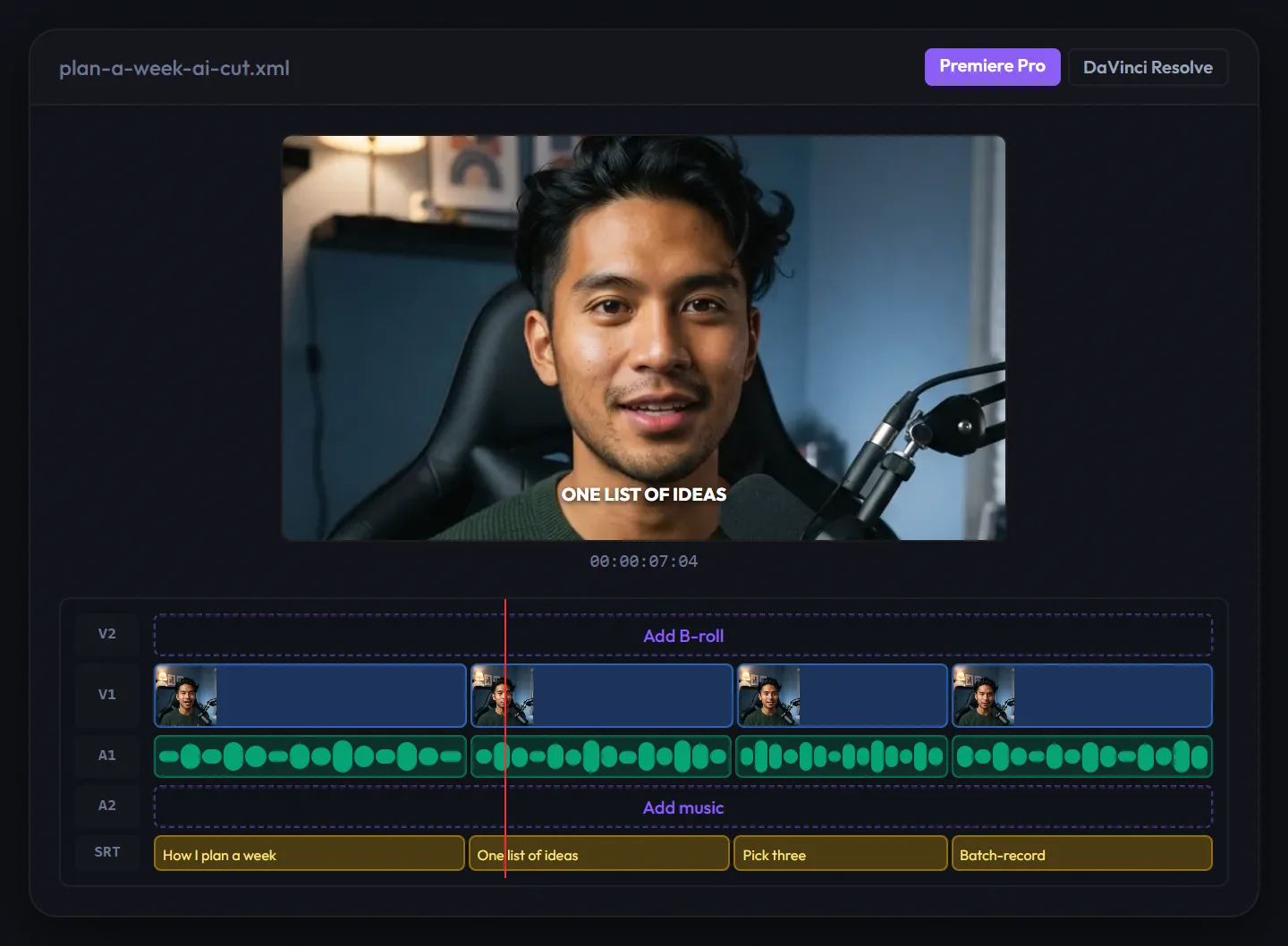
Cut silences and bad takes in one pass, then export to Premiere or Resolve
Try AI Cut freeHow to Remove Silence Without Choppy Cuts
Automatic silence removal can leave a video that feels rushed, with no room to breathe between sentences. These settings fix most of it, in whichever tool exposes them.
- Keep a little padding. Leave a short gap before and after each cut so words don't start or end abruptly. Start around 0.1 to 0.2 seconds and adjust by ear.
- Set a minimum silence length. Only cut pauses longer than about half a second. Shorter pauses are natural rhythm, and cutting them makes speech sound breathless.
- Set the threshold from your room. In a noisy room, a threshold set too low treats background hum as speech and cuts nothing; set too high, it clips quiet word endings.
- Cover jump cuts. On a talking head, many jump cuts in a row look jumpy. Punch-ins, a reframe, or B-roll over the cut hide them.
- Review before export. Skim the result at normal speed. Restoring two or three cuts by hand usually fixes the spots where a pause was doing work.
How to Choose a Silence Remover
- Pick Voice Creator Pro AI Cut if your recordings have repeated takes and filler words as well as dead air, or you record from a script.
- Pick Recut if dead air is your only problem and you want to pay once.
- Pick TimeBolt if you want to try silence removal free on desktop, or want a lifetime license.
- Pick AutoCut if you edit in Premiere Pro or Resolve and want the cuts on your timeline.
- Pick FireCut if you edit in DaVinci Resolve and want a free plugin.
- Pick Descript if you'd rather replace your editor than feed it.
- Pick Gling if you make YouTube videos and want B-roll and title ideas in the same tool.
After the cut, add captions with our guide to word-by-word animated captions, or turn the video into Shorts with how to turn long videos into short clips.
Try AI Cut for free
Also available on Windows and macOS. One-time purchase, unlimited generations.