
Voice Creator Pro is the Captions alternative that gets your captions out in every format
Export captions as SRT, WebVTT, transparent video, or an After Effects script, and dub every speaker in their own voice, in your browser or a Windows and Mac app.
Updated October 2026
Captions is a great phone app for filming and captioning a vertical video, and most people leave when that video has to go somewhere else. The usual triggers: SRT is its only documented caption file, captions stop at 10 minutes on iOS, dubbing stops at 5, and there is no Windows app.
Quick Picks
- Voice Creator Pro: best for caption files, transparent overlays, and multi-speaker dubbing
- CapCut: best for a free full editor on phone and desktop
- Descript: best for editing video by editing the transcript
- VEED: best for an all-in-one browser editor with avatars
- Kapwing: best for teams captioning together in the browser
- Submagic: best for animated caption styles on shorts
- Captions: still the best pick if you film, edit, and post from an iPhone
Quick Comparison
| Tool | Caption files | Dubbing | Platforms | Paid from (Oct 2026) |
|---|---|---|---|---|
| Captions | SRT | 30+ languages; cloning on Max+ | IPhone, Android, web, Mac | $9.99/mo |
| Voice Creator Pro | SRT, VTT, transparent video, After Effects | 21 languages, every speaker cloned | Browser, Windows, Mac | $5/mo; $54.99 desktop once |
| CapCut | Varies by region | Verify by region | Mobile, desktop, web | ~$19.99/mo (reported) |
| Descript | SRT, VTT | Paid plans | Desktop, web | $24/mo ($16 annual) |
| VEED | SRT, VTT (paid) | Higher plans | Web | ~$12/mo annual (reported) |
| Kapwing | SRT, VTT (paid) | 50 min on Pro | Web | $24/mo ($16 annual) |
| Submagic | SRT (advertised) | Captions only, original audio | Web | $19/mo ($12 annual) |
Captions: Best for Filming and Editing on an iPhone
Captions has the strongest phone workflow in the category, and it is built to finish a vertical video inside its own editor. The company renamed itself Mirage in September 2025; the app kept the Captions name.
- Best for: creators who script, film, edit, and caption talking-head video on an iPhone
- Price: Free; Basic $9.99/mo; Max $24.99/mo; Frontier from $69.99/mo (iOS prices, October 2026)
- Standout: teleprompter, AI eye contact, AI Zoom, denoise, one-tap AI Edit styles, and AI avatars (AI Twins and generated actors) in one app
- Limitation: SRT is the only caption file in its help center, and there is no Windows app
Pros
- Rated 4.7 from about 38,000 App Store ratings and updated weekly
- Captions in 100+ languages and dubbing into 30+, with lip-synced dubbing in your own voice through Lipdub on Max and higher
- 100+ caption templates on Max, plus team workspaces with real-time co-editing and a captions API at $0.15 per input minute
Cons
- Captions stop at 10 minutes on iOS and 5 on Android; dubbing and translated captions stop at 5 minutes; the web app takes 60-second uploads and has no dubbing
- Credits are spent on every AI attempt whether or not you export, free credits never renew, and individual credit packs are not sold
- No WebVTT, transparent overlay, or editor export in its documentation
Why people look for alternatives: the further your work gets from a vertical feed, the more Captions pushes back. Trustpilot reviewers in 2026 also describe AI edits that ignore instructions and burn credits on the fixes, and mixed experiences with refunds.
Voice Creator Pro: Best for Captions That Leave the App
Voice Creator Pro is built around the export side: one project gives you every caption format, translation into 21 languages, and a full dub with every speaker in their own voice.
- Best for: creators, editors, and course makers who need captions as files or layers, in more than one language
- Price: Cloud free tier (5,000 tokens a month; caption files download watermark-free, video exports are watermarked); Starter $5/mo (250,000 tokens); Premium $20/mo (1,500,000 tokens); desktop app one-time from $54.99 with unlimited generations. Commercial rights on every tier.
- Standout: four export routes from one project, plus dubbing that clones each speaker automatically
- Limitation: no mobile app, no timeline editor, and no AI avatars
The Subtitle Generator transcribes a video (MP4, MOV, MKV, or WebM) or an audio file with word-level timestamps, and you can regenerate a single wrong line instead of the whole file. Then it exports four ways:
- Burned in: styled captions with caption or karaoke-style word highlighting, background boxes, fonts, and saved presets. See burning subtitles into a video.
- Caption files: SRT or WebVTT, for YouTube, course platforms, and players with a captions toggle.
- Transparent caption video: Animation .mov, ProRes .mov, or WebM, layered over footage in Premiere, Resolve, or Final Cut with no keying. Our guide to transparent caption overlays explains when this beats burning captions in.
- After Effects (.jsx): a script that rebuilds the captions as editable text layers. The After Effects captions workflow walks through it.
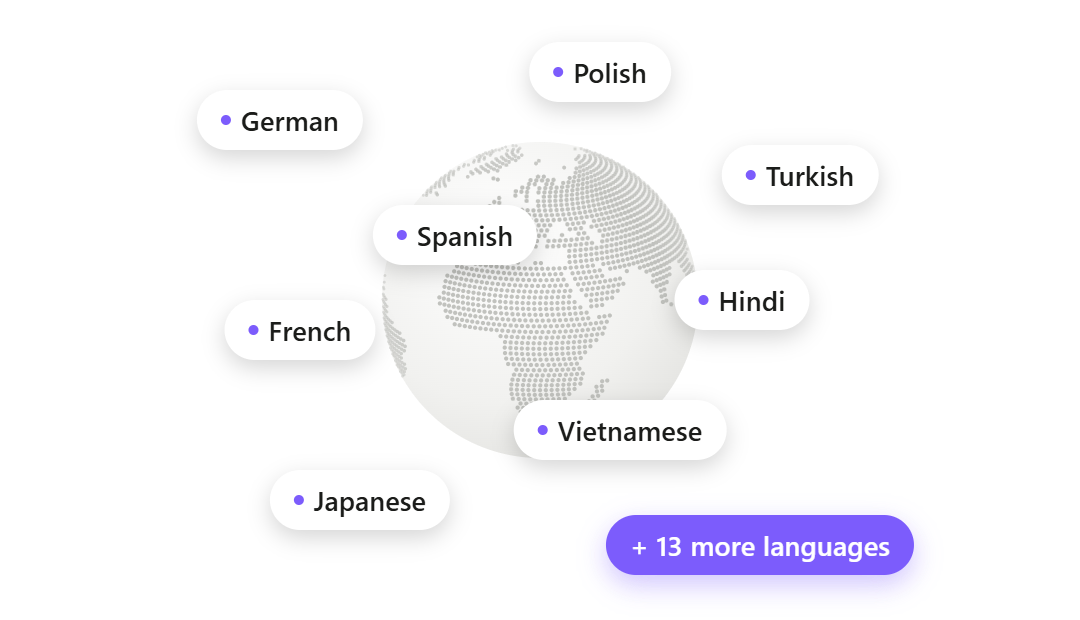
Translation that can go all the way to a dub. Video Dubbing separates and clones each speaker automatically, fits lines to the original timing, keeps the background music, and offers optional lip sync. Export the dubbed video, the dubbed audio alone (for a YouTube language track), or the translated caption files.
Pros
- Every caption format from one project, with no per-video length tier by plan
- A two-person interview comes back with both people sounding like themselves in the new language
- Runs in any browser, or as a Windows and Mac desktop app that processes everything on your own computer for a one-time price; the Clips Generator also cuts long videos into captioned vertical shorts you can dub
Cons
- No mobile app and no timeline editor (no B-roll, music library, transitions, or eye contact correction)
- 21 languages, where Captions offers 100+ for captions and 30+ for dubbing
- No AI avatars and no shared team workspace
Try the Subtitle Generator free in your browser or see the desktop one-time pricing.
Upload one video and get SRT, WebVTT, transparent video, and After Effects captions back
Caption a video freeCapCut: Best for a Free Full Editor
CapCut, from ByteDance, is the closest like-for-like swap: another phone-friendly editor with styled captions and templates, plus a proper desktop app.
- Best for: creators who want a full editor on phone and desktop for little or no money, and mostly post to TikTok
- Price: free editor; Pro about $19.99/mo or $179.99/yr, varying by region (as reported in 2026 reviews)
- Standout: a huge template library, effects, and direct ties to TikTok
- Limitation: caption file export and translation vary by region and plan, so check in your own account
Pros
- A free tier that does far more than Captions' free plan
- Desktop apps for Windows and Mac, plus mobile and web
- Auto captions with many animated styles
Cons
- Auto captions moved behind Pro in many regions in the last year
- Feature sets differ by country, so a tutorial written elsewhere may not match your app
- No better than Captions on caption files or dubbing
You trade Captions' talking-head tools (teleprompter, eye contact, AI Edit styles) for a deeper general editor.
Descript: Best for Editing by Transcript
Descript answers the "I need a real editor at my desk" complaint, with long-video support and caption files in both common formats.
- Best for: people who leave Captions for more editing control, especially on longer talking videos
- Price: free plan; Hobbyist $24/mo ($16 annual); Creator $35/mo ($24 annual); Business $65/mo ($50 annual), with 10 to 40 media hours by plan (October 2026)
- Standout: delete a sentence from the transcript and it disappears from the video
- Limitation: AI features run on a credit allowance on top of media hours
Pros
- Styled burned-in captions plus SRT and VTT export
- Filler-word removal and studio sound built in
- Translation and dubbing on paid plans
Cons
- More software than you need if you only want captions
- Two meters (media hours and AI credits) make costs harder to predict, and dubbing is metered too
VEED: Best for an All-in-One Browser Editor
VEED is the desk-side version of Captions: an AI editor with captions, translation, dubbing, and avatars, used from a laptop instead of a phone.
- Best for: browser-based teams who want subtitles, translation, and an editor without installing anything
- Price: Lite about $12/mo per seat billed annually, Pro about $24/mo annually (as reported, October 2026; VEED's own pricing page did not show prices when checked)
- Standout: subtitles in many languages, with dubbing, lip sync, and AI avatars on higher plans
- Limitation: no transparent caption export advertised
Pros
- Gives you the VTT file Captions lacks (SRT and VTT on paid plans)
- Runs entirely in the browser
Cons
- The heavier AI features sit on higher plans, as on Captions
- Feature limits differ a lot between plans, so map your needs to a tier before buying
Kapwing: Best for Teams in the Browser
Kapwing trades the phone app for collaboration: several people can work on the same project in a shared browser editor.
- Best for: small teams that caption, translate, and lightly dub together
- Price: free plan (5 minutes of translation); Pro $24 per member per month ($16 annual) with 50 dubbing minutes; Business $64 ($50 annual) adds lip sync (October 2026)
- Standout: subtitle translation and dubbing minutes inside a collaborative editor
- Limitation: prices are per member, so costs rise with team size
Pros
- Burned-in styled subtitles, plus SRT, VTT, and TXT on paid plans
- Lip sync on Business
Cons
- The free plan does not export caption files
- Dubbing is measured in monthly minutes, which suits occasional translation more than a weekly dubbing schedule
Submagic: Best for Animated Captions on Shorts
Submagic matches Captions on caption style and goes further on posting, but it is web only and caps video length by plan.
- Best for: short-form creators who mostly loved Captions for its animated caption look
- Price: Starter $19/mo ($12 annual), 15 videos a month up to 2 minutes each; Pro $39/mo ($23 annual), 40 videos up to 5 minutes; Business $69/mo ($41 annual), up to 100 videos up to 30 minutes. Per member. Free trial of 3 short, watermarked videos (October 2026).
- Standout: high-energy caption styles with auto zooms, B-roll, silence removal, hook titles, and scheduled posting
- Limitation: the 2-minute cap on Starter rules out anything long-form
Pros
- The trendiest caption looks for TikTok, Reels, and Shorts
- Advertises SRT export and caption translation
Cons
- Long-video clipping is a separate Magic Clips add-on
- Its translator page says it keeps your original audio rather than cloning voices
- No mobile app
Our Submagic alternatives guide covers its trade-offs in more depth.
Where Your Captions Need to Go
The real question when leaving Captions is where the captions end up. Here is what each destination needs, and how Captions and Voice Creator Pro handle it.
- TikTok, Reels, Shorts: burned-in styled captions. Both tools do this.
- YouTube closed captions: an SRT or WebVTT file. Captions exports SRT; Voice Creator Pro exports both.
- Course platforms and school or company LMS players: usually WebVTT, sometimes SRT. Captions offers SRT only; Voice Creator Pro offers both.
- Premiere, Resolve, Final Cut: a caption layer you can move and restyle. With Captions you re-import the SRT and restyle; Voice Creator Pro exports a transparent .mov or WebM overlay.
- After Effects: editable text layers. Not documented for Captions; Voice Creator Pro exports a .jsx script.
- Viewers in another language: translated captions or a dub. Captions has 100+ caption languages and dubbing up to 5 minutes; Voice Creator Pro has 21 languages, as captions or a full multi-speaker dub.
- A 20-minute YouTube upload: captions on the full length. That is over Captions' 10-minute iOS limit; Voice Creator Pro has no plan-based length tier.
If most of your work is the first item, Captions is doing its job and switching may not be worth it. If it is the items below, an export-first tool saves you a re-styling pass every time.
For the file formats themselves, see SRT vs VTT. For when a burned-in caption beats a file, see burned-in vs closed captions.
Switching From Captions
Moving from Captions takes a few minutes if you cancel in the right place and start from your original recordings.
- Use your credits first. Rolled-over credits are forfeited when you cancel or downgrade, per Captions' help center.
- Cancel where you subscribed. App Store and Google Play subscriptions are cancelled in those stores, and deleting the app does not cancel. Monthly plans are non-refundable, so cancel at least 24 hours before renewal.
- Upload the original video or audio to the Subtitle Generator and check the transcript, regenerating any line that came through wrong.
- Save a caption preset so every video keeps the same look.
- Pick an export per destination: burned in for shorts, SRT or WebVTT for YouTube and courses, transparent video or .jsx for your editor.
Bring one video over from Captions and export it in every format
Caption my first video freeHow to Choose
- Pick Voice Creator Pro if you need caption files, transparent layers, or After Effects, or want the video in another language with each speaker in their own voice.
- Pick Voice Creator Pro, Descript, or CapCut desktop if you work on Windows or on videos longer than 10 minutes.
- Pick CapCut if you want a full editor on phone and desktop for free.
- Pick Descript if you want to edit by editing the transcript.
- Pick VEED if you want an all-in-one browser editor with avatars.
- Pick Kapwing if your team edits together in the browser.
- Pick Submagic, or stay on Captions, if you mostly want trendy animated captions for shorts.
- Stay on Captions if you film, edit, and post from your iPhone. Nothing on this list beats its phone workflow.
Comparing caption tools more broadly? Our roundup of the best subtitle generators ranks the whole category.
Try the Subtitle Generator for free
Also available on Windows and macOS. One-time purchase, unlimited generations.