
How to Make Text to Speech Pronounce Names Correctly (2026)
You paste a paragraph into a text to speech tool, hit generate, and the voice sounds great until it reaches a name. "Siobhán" comes out as "See-oh-ban." "Nguyen" turns into something with a hard G. "Qatar" gets an American twang no one in Doha would recognize. Your own company name, a colleague's surname, a drug name in a medical script, a product like Xiaomi: the model guesses, and it guesses wrong.
The usual fix is to hand-edit every export. You respell the word in the text, regenerate, listen again, and hope. Then next week you write a new script with the same name and do it all over. It is slow, it is inconsistent, and it never actually solves the problem. It just patches one file at a time.
There is a better way. Instead of fixing the same word forever, you teach the tool how to say it once. This guide shows how to do that with Voice Creator Pro's custom pronunciation lexicon, so a name you correct today is correct in every generation from now on.
Why generic TTS mispronounces names
A text to speech model converts letters to sounds using patterns it learned from training data. That works for common English words because it has seen them a million times. It breaks down on anything the patterns do not cover:
- Personal names, especially non-English ones. Siobhán (correctly "shiv-AWN"), Nguyen (roughly "win" or "ngwin"), Xiuying, Saoirse, Bhavya. The spelling gives the model no reliable clue.
- Place names with pronunciations that fight their spelling. Qatar, Worcester, Leicester, Oaxaca.
- Brand and product names. Xiaomi ("SHOW-mee"), Huawei, Nginx, Hermès. Marketing spellings are designed to look distinctive, not to be phonetic.
- Drug and medical names. These are safety-critical in a voiceover and almost never spelled the way they sound.
- Acronyms and initialisms. Should "GIF" be a hard or soft G? Should "SQL" be "sequel" or "S-Q-L"? Should "NASA" be a word and "FBI" be letters? The model has to guess per acronym, and it is not consistent.
None of this is a flaw you can prompt your way out of reliably. The model does not know that "St." in your script means "Saint" in one place and "Street" in another. It needs to be told. That is exactly what a pronunciation lexicon is for.
The fix: a custom pronunciation lexicon
Voice Creator Pro has a custom pronunciation lexicon: a personal dictionary of phrases and how you want them said. You add an entry once, and VCP substitutes your pronunciation automatically before every single generation, on every model. You never touch that word again.
The core idea:
Teach VCP how to say a name once, and it applies everywhere, forever.
An entry is just a phrase mapped to a pronunciation:
Siobhán   ->   shivawn
Nguyen    ->   win
Qatar     ->   cutter
Xiaomi    ->   show-me
GIF       ->   jif
The left side is the text as it appears in your scripts. The right side is a respelling: you write the word the way it sounds, using plain letters, and let the model read that instead. Once "Siobhán -> shivawn" is in your lexicon, this input:
"Siobhán reviewed the Qatar contract."
is spoken as if you had written:
"shivawn reviewed the cutter contract."
The difference from hand-editing is that your actual script still reads "Siobhán reviewed the Qatar contract." The on-screen text, your captions, and your source document stay clean and correctly spelled. Only the audio changes.
How the matching works
The lexicon is built to behave predictably, so you can trust it across long scripts.
- Longest match first. If you have entries for both "St." and "St. John", VCP applies the longer, more specific one when it fits. So "the St. John bridge" resolves using your "St. John" entry rather than expanding "St." on its own. You can define a general rule and a more specific override, and the specific one wins.
- Case-insensitive. "nasa", "NASA", and "Nasa" all match the same entry. You do not need to add every capitalization.
- Smart abbreviation matching. Abbreviations like "St." are matched sensibly inside real sentences, including when they sit next to other punctuation, so "the St. John bridge" is handled correctly rather than being missed because of the period.
- Applied before generation, every time. The substitution runs as a pre-processing step ahead of the model, so it works the same regardless of which voice or model you pick.
Because it is longest-match-first and case-insensitive, you can start with a handful of entries and add specific overrides later without breaking the general ones.
How to add an entry that works
- Generate once and listen. Note the exact word the model gets wrong. Do not guess in advance; fix what actually breaks.
- Respell it phonetically. Write the word the way it sounds using ordinary letters and syllables. Read your respelling out loud. If it sounds right to you, it will usually sound right in the voice.
- Add it in the lexicon. In Voice Creator Pro's Audiobooks tab, find the Lexicon panel in the left sidebar and click + Add. Put the word exactly as it appears in your script under Word or phrase, and your phonetic respelling under Pronunciation. Keep the left side unchanged; only the pronunciation is a respelling.
- Preview it, then save. Pick a voice and hit Preview to hear the respelling read aloud in the actual voice before you commit it. If it sounds right, click Save.
- Regenerate. The name is now correct, and it will stay correct in every future project without any further effort.
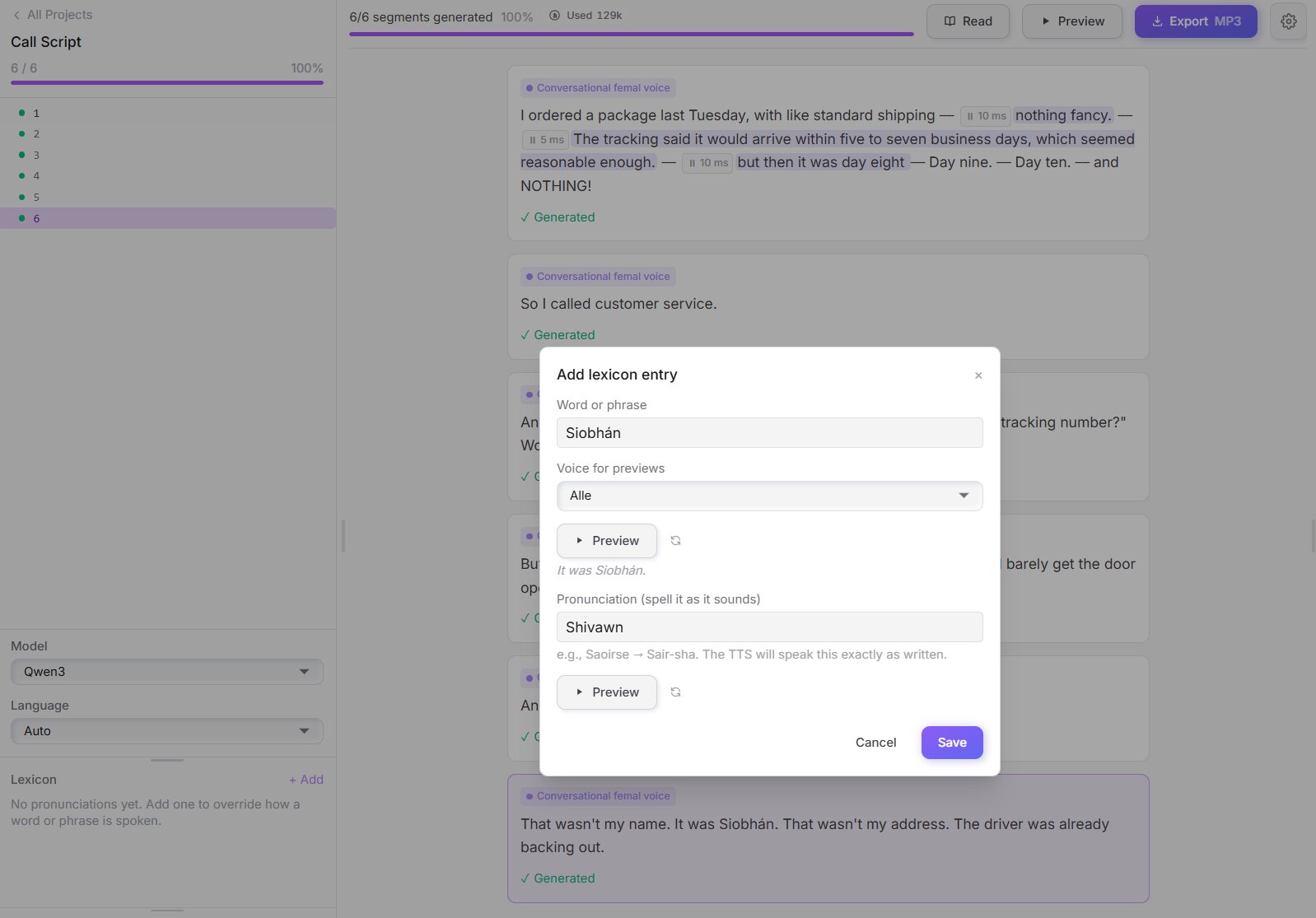
A few respelling tips:
- Break it into syllables and lean on spellings you already trust. "Siobhán" becomes "shiv-awn" or "shivawn." "Nguyen" becomes "win." "Qatar" becomes "cutter."
- For acronyms you want spoken as letters, space or hyphenate them: "SQL -> S Q L." For ones you want as a word, spell the word: "SQL -> sequel," "GIF -> jif."
- For expansions, just write the full form: "Dr. -> Doctor," "approx. -> approximately." VCP will speak the expansion.
Here is a small lexicon for a medical script that mixes names, an abbreviation, and a brand:
Dr.        ->   Doctor
Nguyen     ->   win
mg         ->   milligrams
Xanax      ->   zan-aks
approx.    ->   approximately
With that in place, this line:
"Dr. Nguyen prescribed approx. 50 mg of Xanax."
is spoken as:
"Doctor win prescribed approximately fifty milligrams of zan-aks."
You built that list once. It now applies to every script in the project, forever.
Why this beats the alternatives
People reach for two other approaches, and both have real drawbacks.
Respelling inside the text itself. You could just type "shivawn" instead of "Siobhán" in your script. It works for the audio, but it corrupts your source text. Your captions, transcripts, and on-screen words now say "shivawn," which is wrong for anyone reading along, and you have to remember to undo it if you reuse the document. The lexicon keeps your text correct and only changes the sound.
SSML phoneme tags. SSML lets you wrap a word in a <phoneme> tag with an IPA or X-SAMPA string. It is precise, but it is not beginner friendly: you need to know the phonetic alphabet, the syntax is fussy, and you have to re-add the tag every time the word appears. A respelling like "cutter" is something anyone can write, and the lexicon reuses it automatically.
The lexicon is not magic, and it is worth being honest about that. It substitutes text, so a respelling that reads oddly can still sound off, and you may need one round of tweaking to nail an unusual name. But you only do that tuning once, and it is plain-English respelling, not phonetic notation.
It works everywhere you use VCP
Text normalization and the custom pronunciation lexicon run identically across the Voice Creator Pro desktop app and the web app. A lexicon you build on your desktop applies the same way when you generate from a browser. There are no per-platform quirks to manage. You define the name once, and every place you use VCP says it the same way.
This matters most for teams and long-running projects: a shared list of names, brands, and terms means everyone's exports pronounce them consistently, instead of each person patching the same words by hand.
Where the lexicon fits with the rest of complex text
Names are one piece of the broader problem of getting TTS to handle real-world text: numbers, currency, dates, symbols, and abbreviations all trip up generic models too. For the full picture, see our overview of text to speech for complex text. If your scripts are heavy on those, it is worth reading our first-party test of how twelve TTS tools handle messy, complex input in the best text to speech for research papers, which shows exactly where tools fail on dense technical text. And if your voices sound flat or mechanical beyond just mispronunciations, how to make AI voices sound natural covers the delivery side.
The pronunciation lexicon is the piece that makes names, brands, and acronyms reliable, so you stop fixing the same word in every export.
Try Voice Creator Pro for free
Also available on Windows and macOS. One-time purchase, unlimited generations.